 IMG To PDF
  Word To PDF
  Excel To PDF
  JPG To PDF
  PNG To PDF
  Text To PDF
  PPT To PDF
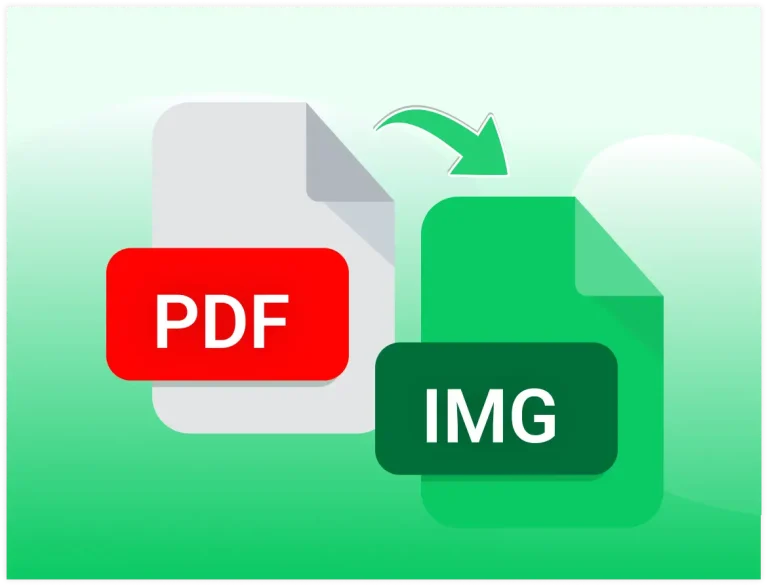
  PDF To IMG
  PDF To Word
  PDF To Excel
  PDF To JPG
  PDF To PNG
  PDF To Text
  PDF To PPT
  Word To JPG
  Word To PNG
  IMG To Word
  IMG To PPT
  IMG To Excel
  IMG To Text
 Your file has been converted successfully!
Click the button below to download your converted file.


Select File

Conversion
Save

No PDF Reader Required
PDF reader is not required to open and view converted images.

Ideal for Websites and Blogs
A user can easily use converted Image into websites, landing pages, articles, and portfolios.

Faster Mobile View
Image files often load faster and provide a smoother viewing experience on mobile devices.
Extract Individual Pages
Easily convert specific PDF pages into separate images without sharing the entire document.

Best for Screenshots
Create high-quality image previews from reports, brochures, catalogs, and presentations.
Device Friendly
Users can quickly convert PDF to IMG from different versions or OS, like iOS, Mac, Windows, Android
Expert Advice & Quick Tips
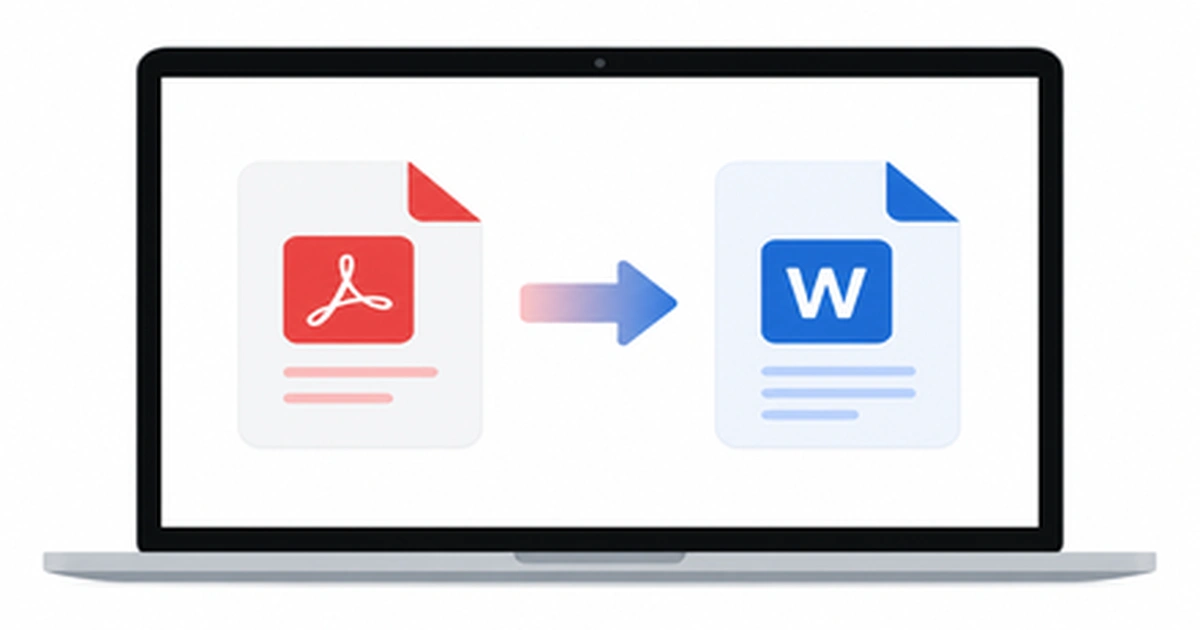
How to Convert PDF to Word on Mac (5 Easy Ways)
Working with a PDF on your Mac is easy until you need to actually edit the text inside it. Maybe you received a contract that needs a quick edit, or a report you want to update before sending it back. The moment you try to change anything, you realize PDFs simply aren’t built for editing. […]
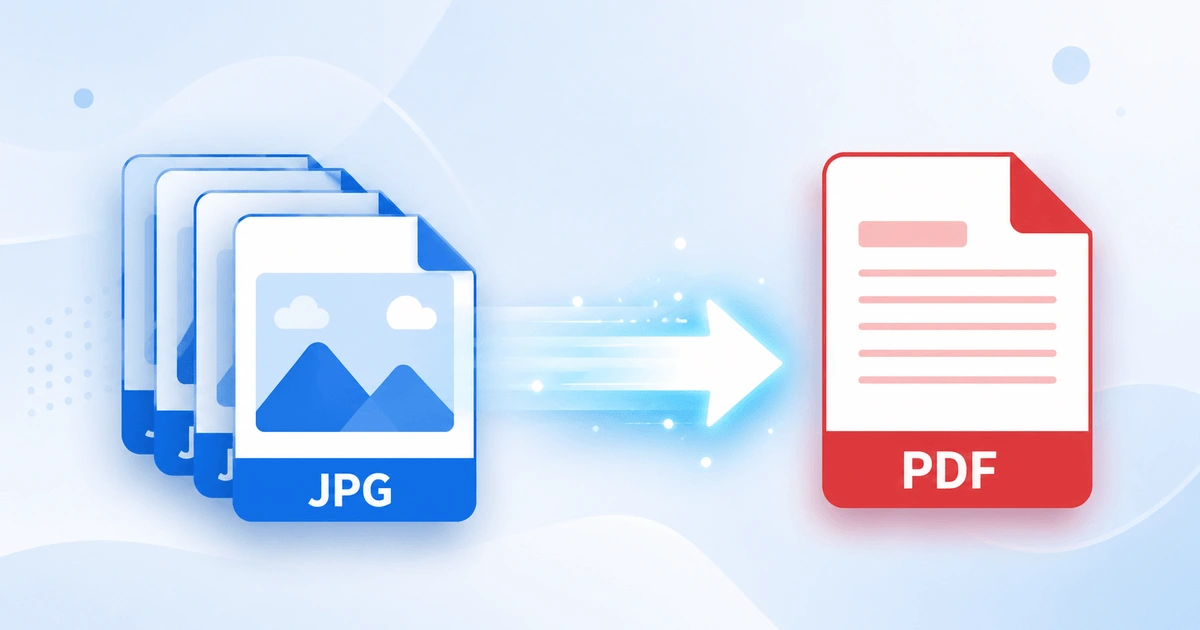
How to Convert JPG to PDF in Seconds (Free & Easy Guide)
Need to turn a JPG image into a PDF file quickly? How to Convert JPG to PDF in Seconds? Simply upload your JPG image, convert it into a high-quality PDF, and download the file instantly. In this case, you don’t need to install software or have technical skills. Here you can scan documents, receipts, invoices, […]
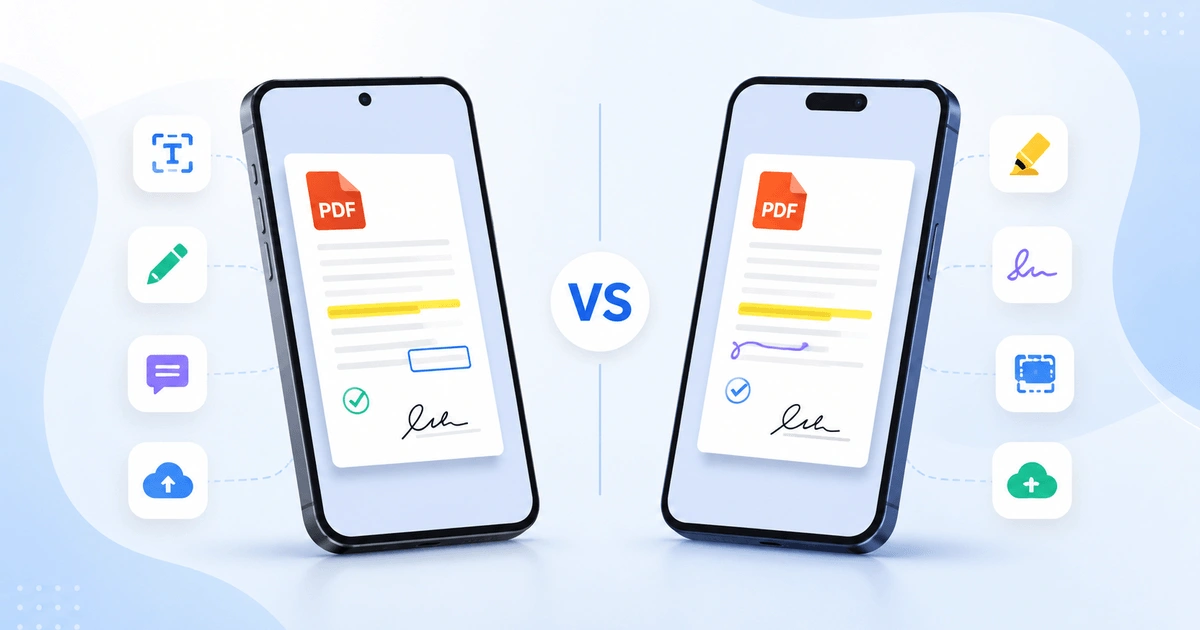
Android vs iPhone PDF Apps: Which Is Better in 2026?
Opening a PDF is simple on any smartphone, but viewing, editing, signing, and organizing PDFs is where Android and iPhone start to differ. Whether you are a student annotating lecture notes, a professional signing contracts, opening receipts, or scanning documents, the platform you use affects your overall PDF experience. This guide compares Android vs iPhone […]