
Need to turn a PDF into a high-quality JPG on Windows? Whatever you have to share, a single page, creating presentation visuals, or uploading images online. Select a file from your device, upload it, and download it. This is the fastest and easiest way to convert PDFs into JPG files without sacrificing quality.
To convert a PDF to JPG on Windows, you don’t need a complete system. You don’t need advanced design software or technical knowledge. Our PDF Conveter is available on the web. Without using a mobile app, you can convert a PDF to JPG image format on Windows conveniently. If you are a Mac user, no worries, convert document on Mac. However, let’s have a look at how easily you may extract your PDF file into JPG image format.
Why Convert PDF to JPG on Windows?
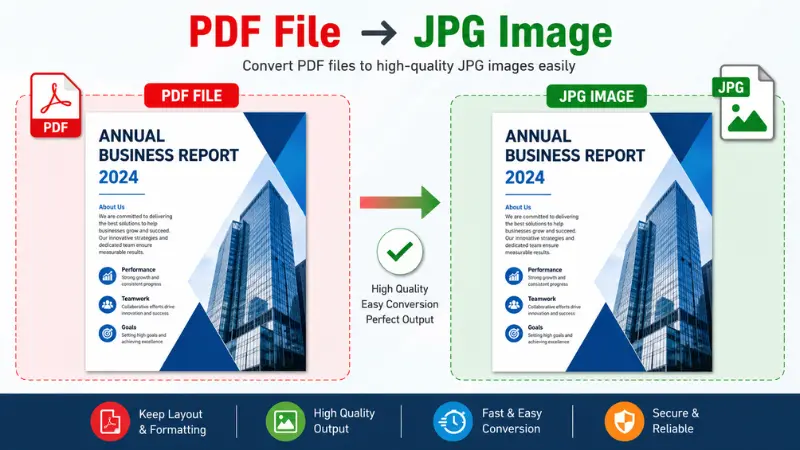
A PDF is excellent for preserving a document’s layout, but it’s not always the most convenient format for everyday tasks. When you need to share a single page, upload an image online, or insert content into another project, a JPG is often the better choice.
PDF Converter gives the best facility to convert a PDF to JPG on Windows without changing the original document. Here are the most practical reasons why millions of users choose this conversion every day.
1. JPG is Easy to Share
Suppose you are applying for a new job and need to send only the certificate page from a 15-page PDF. Instead of asking the recruiter to download the whole document, converting that single page to JPG lets. This saves time for both you and the recipient.
2. Better Compatibility
If you frequently convert PDFs on Windows, an online PDF to JPG converter is usually the quickest option. You can upload your document, convert it in seconds, and download high-quality JPG images without installing desktop software. Many online marketplaces allow image uploads but don’t accept PDF documents. Converting your product specification sheet or instruction page to JPG lets you upload it without extra editing.
3. Faster Uploads
Large PDF files can take longer to upload, a properly optimized JPG is often much smaller, making uploads quicker and smoother. Choose a balanced image quality setting during conversion. A high-quality JPG usually provides excellent clarity while keeping the file size manageable.
4. Use Images in Presentations
For creating presentations, reports, or marketing materials, an image is often easier than embedding a PDF. Whereas JPG files fit naturally into presentation software and can be resized, cropped, or positioned without affecting the overall layout. Export important charts or diagrams as high-quality JPG images to ensure they remain sharp when displayed on larger screens.
5. Share on Social Media
Social media platforms are built around images, not PDF documents. If you want to post a report summary, event flyer, certificate, infographic, or promotional offer, JPG format is the best for social platforms like Facebook, Instagram, LinkedIn, Pinterest, and X. Here PDF Conveter PDF Converter will help to maintain image quality and create a more professional appearance.
Best Ways to Convert PDF to JPG on Windows
There are several ways to convert a PDF to JPG on Windows, but the easiest method depends on your needs. If you want a fast, hassle-free solution, an online PDF to JPG converter is the best choice. It requires no installation, works on any modern browser, and converts your files in just a few clicks.
Our online conversion system is the quickest way to turn PDF files into high-quality JPG images. It’s ideal for students, professionals, and anyone who needs a simple and secure conversion process. Here is a complete process of how to convert a PDF to JPG on Windows.
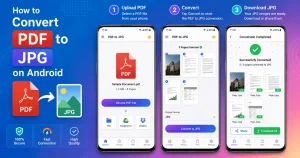
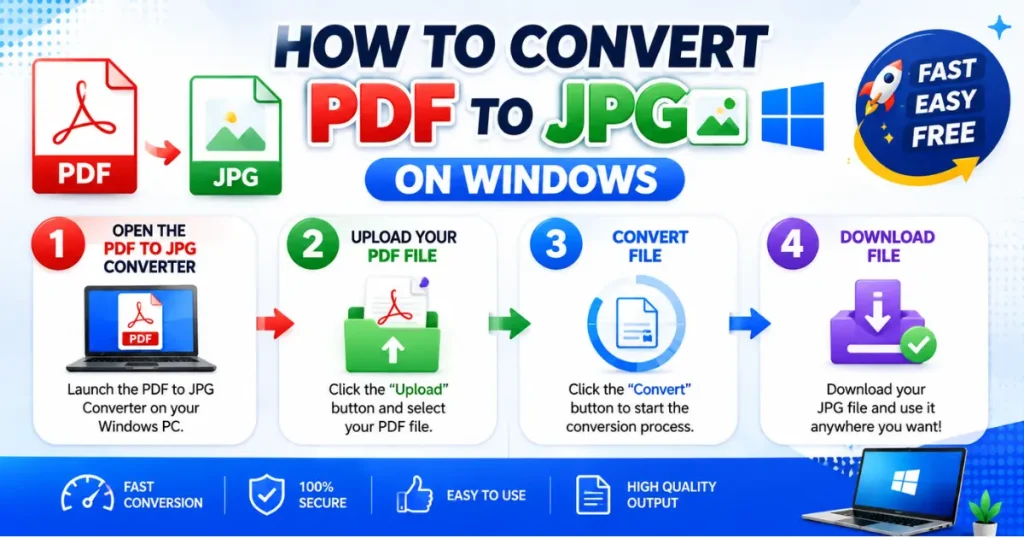
Step 1: Open the PDF to JPG Converter
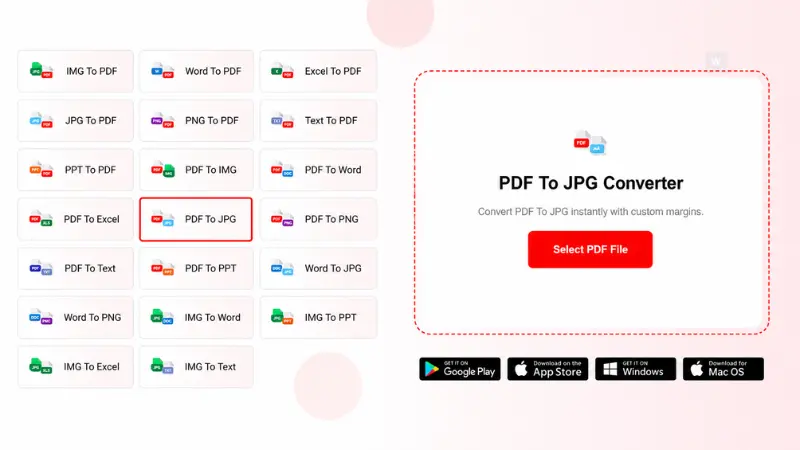
Visit our trusted PDF to JPG converter (pdfconveter.com) in your web browser.
Step 2: Upload Your PDF File
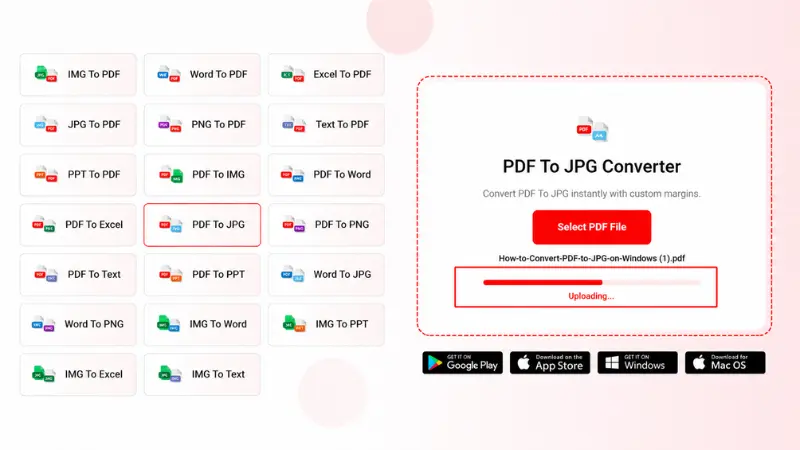
Click on the select PDF file or drag and drop your PDF into the converter.
Tip: Convert only the pages you need to save time and storage space.
Step 3: Convert File
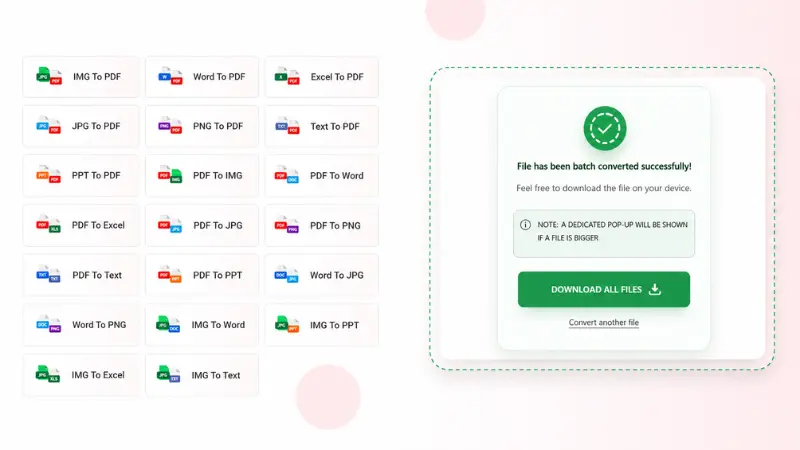
Click Convert and wait a few seconds while your file is processed.
Step 4: Download File
Download the converted JPG images and check the quality before sharing or using them.
Benefits of Using an Online PDF to JPG Converter
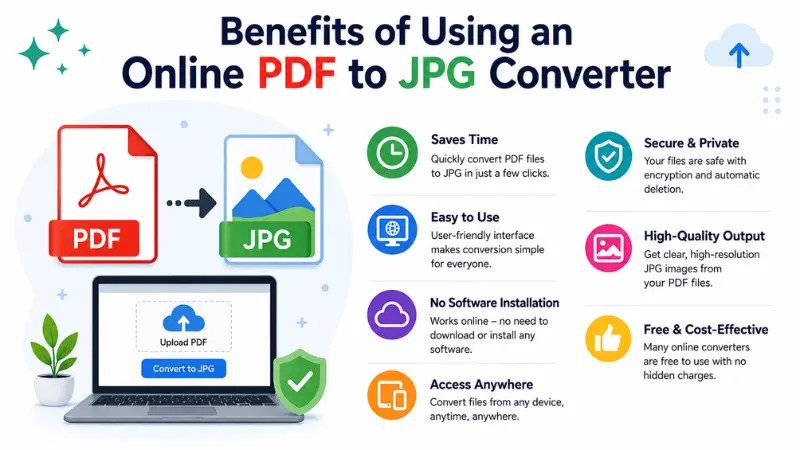
Converting a PDF to JPG or JPG to PDF online is one of the easiest ways to turn documents into image files without installing extra software. Sharing reports, saving invoices, creating presentations, or posting documents online, an online converter offers a fast and convenient solution. Here are the key benefits.
- No software installation updates or maintenance required
- Saves storage space on your device.
- Works on Windows, macOS, Linux, Android, and iPhone.
- An online PDF to JPG converter processes files quickly.
- Efficient conversion for both small and large PDF files.
- Clear and readable text.
- Sharp and high-quality images.
- No unauthorized access to your documents.
By choosing a reliable online PDF to JPG or PDF to PNG converter, you can enjoy a faster workflow, excellent image quality, and secure document processing.
PDF to JPG vs PNG Which Format Should You Choose?
Many businesses use different kinds of image formats for their needs, like JPG, PNG, WEBP, AVIF, and others. Here we will see a comparison between PDF to JPG vs PNG. So that you may choose easily which format to use.
| Feature | JPG | PNG |
| Best For | Photos, scanned documents, and sharing | Logos, graphics, screenshots, transparency |
| Image Quality | High (slight compression) | Excellent (lossless quality) |
| File Size | Smaller | Larger |
| Text Clarity | Good | Excellent |
| Supports Transparency | No | Yes |
| Web Performance | Faster loading | Slower due to larger files |
| Printing | Great for everyday printing | Best for detailed graphics |
| Recommended Use | Email, websites, social media, document sharing | Graphic design, presentations, UI elements, editing |
Who Should Convert PDFs to JPG Format?
Multiple categories of people us PDF converter. Our PDF converter has been designed for multiple categories of people, such as
- Students
- Teachers
- Designers
- Marketers
- Business Professionals
- Real Estate Agents
- Ecommerce Sellers
- Legal Teams
Why Choose Our PDF to JPG Converter?
There are over a hundred converting website those offer the best converting system. Some of them have a few downsides, like the conversion process, the conversion image quality, the premium features, and so on, limited features. Whereas our PDF Converter is one of the best PDF converting websites for web (Windows, Mac, Android, and iOS).
No need to install anything, no subscription or hidden cost, standard features, image quality, and so on. However, here are some of the most common points that made pdfconveter.com outstanding converting platform.
- Fast Conversion
- AI-Powered Processing
- High-Resolution JPG Output
- Batch Conversion
- Secure File Encryption
- No Watermark
- Free to Use
- Works on Windows, Mac & Mobile
Frequently Asked Questions
Can I convert PDF to JPG for free on Windows?
Yes. You can convert PDF files to JPG for free on any Windows computer using an online converter. Simply upload your file, convert it, and download the images. No payment or special software required.
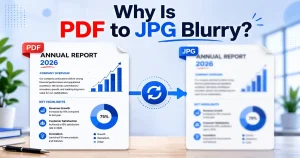
Does converting PDF to JPG reduce quality?
Of course not. Our converter preserves sharp text and clear images. No quality drops after conversion. Check that out and give us feedback.
Can I convert multiple PDF pages into JPG?
Yes, most PDF to JPG converters can turn every page of your PDF into a separate JPG image, making it easy to save, edit, or share individual pages.
Is my PDF secure after converting?
Yes, it is our trusted converter. This tool protects your files during processing with encrypted connections and automatically removes uploaded documents after conversion.
Can I convert password-protected PDFs?
Yes, enter the password to unlock the document before converting it to JPG. This helps protect private and confidential files.
Final Thought
The PDF to Word converter has been designed to be used on multiple browsers, operating systems (OS), and devices. The conversion process is very easy, and no skill is required. School-level students can easily use this conversion tool. However, we have referred to the user manual or the conversion process. Follow and convert your document into another file format, and meet your demand.