
You are using an Android phone, and you have a PDF file, but you actually need an image format like JPG. Something you can upload to social media or share in a group chat that anyone can see without opening a PDF viewer. You need to convert your file into JPG
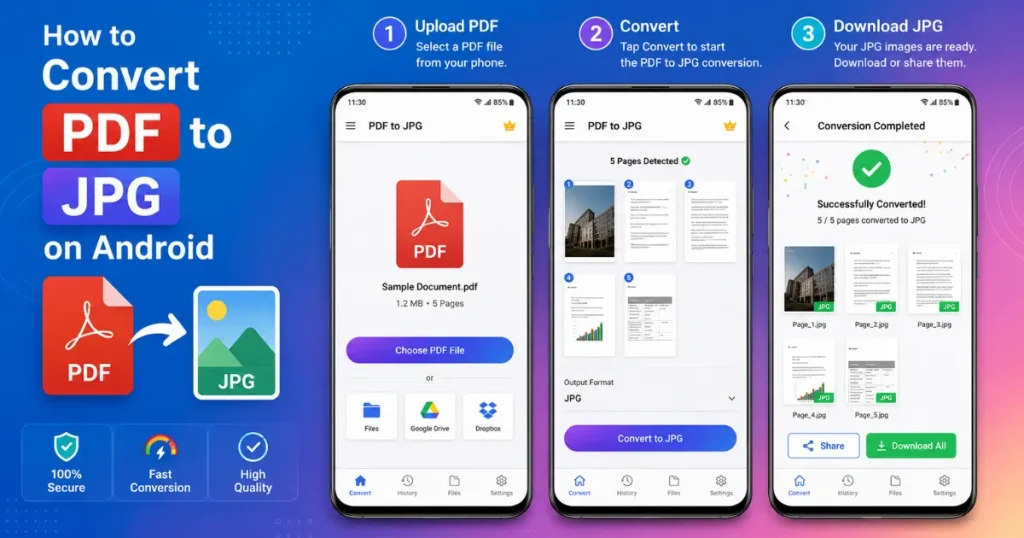
To convert PDF to JPG on Android, open your browser, go to PDF to JPG converter, upload your PDF file, tap convert, and download your JPG file.
In this step-by-step guide, you will learn how to convert PDFs into JPGs on Android using different methods: a browser-based converter tool and Android apps
Why Convert PDF to JPG on Android?
Although PDF is a great format for documents, it’s not always the right format to use in every situation. Sometimes, the JPG format becomes so useful for different use cases.
Here is why converting to JPG is more useful
Easier image sharing
JPG files can be opened from your phone’s gallery without a PDF reader. When you share a JPG with someone on WhatsApp, Telegram, or email, the other person can see your content immediately.
Uploading to social media
Social media platforms like Instagram, Facebook, and LinkedIn do not accept PDF files to upload content. If you want to post content like a certificate or any document-style visual, you need to convert it into an image format like JPG.
Saving individual pages
Most PDFs contain multiple pages, but you might need only 2 selective pages. You can save the desired page while converting to JPG, no need to send the entire PDF file.
Sending images through messaging apps
Most messaging apps show image previews instantly in the chat, but when you send a PDF, it shows like a document attachment. Converting PDF to JPG makes sharing faster and allows your recipients to view it without downloading the file.
How to Prepare Before Converting a PDF
Before you convert a PDF, you need to prepare these key things for a smooth conversion: uploading and downloading the JPG, and using it.
- Check your internet connection — if you’re using an online tool, you need a stable connection
- Ensure enough storage space — converted JPG images take more space than PDFs
- Choose the PDF file — select the right file you want to convert to JPG.
How to Convert PDF to JPG on Android
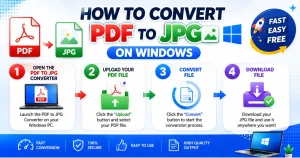
You can convert a PDF to JPG using two different methods online and offline. If you want to convert your file without downloading and installing any app, use method 1: a browser-based online PDF converter tool.
However, if you convert PDF files frequently and you don’t always have a stable internet connection, use method 2: an offline PDF conversion app. That allows you to convert your files anytime, anywhere, without an internet connection.
Method 1: Using an Online PDF to JPG Tool
This is the fastest method. No app installation required. All you need is a browser and an internet connection.
Step 1: Open your browser
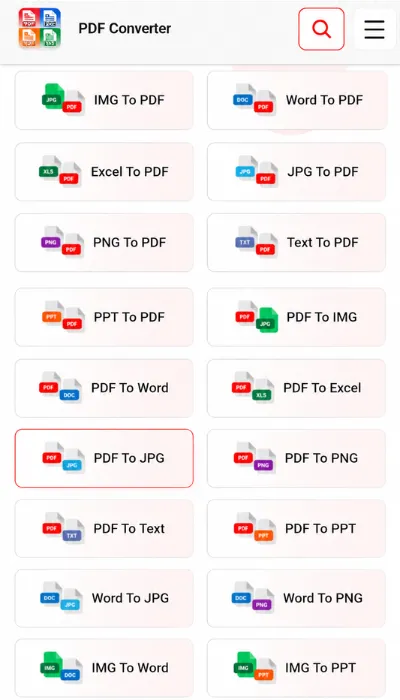
Open your preferred browser, Chrome or Firefox, on your Android phone. Search PDF to JPG converter.
Step 2: Upload the PDF
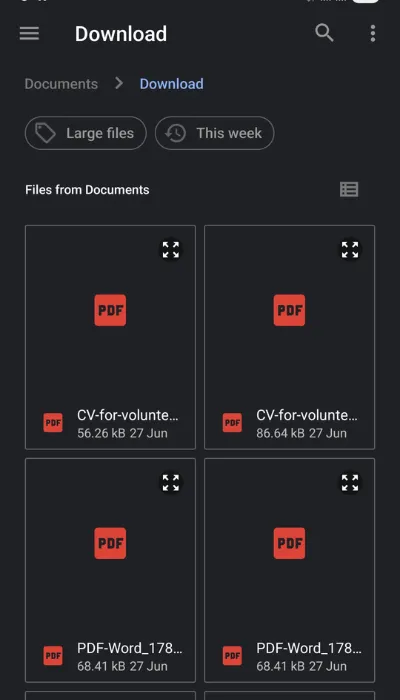
Select your PDF file from your phone that you want to convert to JPG. After uploading the file, it will automatically convert to JPG.
Step 4: Download
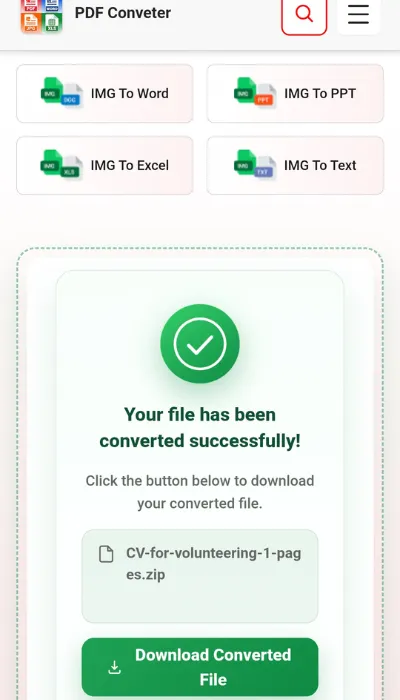
Click download and get your converted JPG file.
Method 2: Using an Android App
If you need to convert PDFs offline and regularly use a dedicated PDF converter Android app.
Step 1: Install App
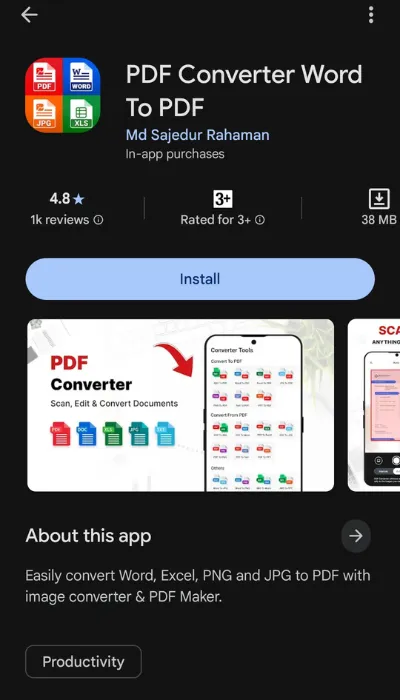
Search for a PDF to JPG converter on the Google Play Store and install apps with a high rating (4.5+) and lightweight in size.
Step 2: Open PDF to JPG
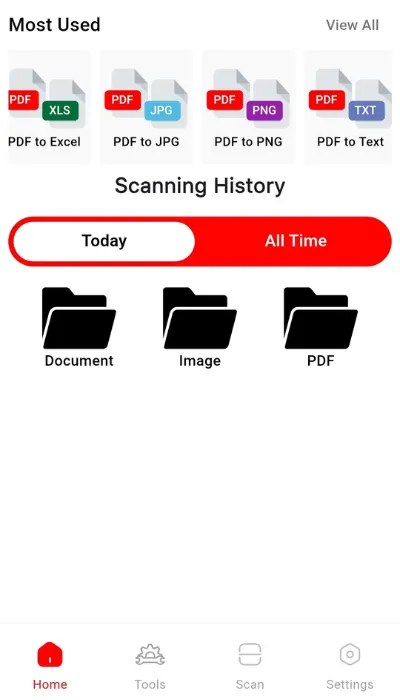
Open the converter app and choose the PDF to JPG feature in the app.
Step 3: Choose your File
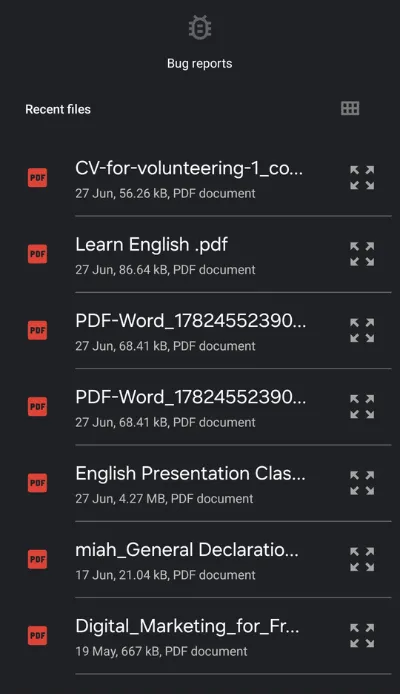
Import the PDF file from your phone that you want to convert.
Step 4: Choose quality and Export as JPG
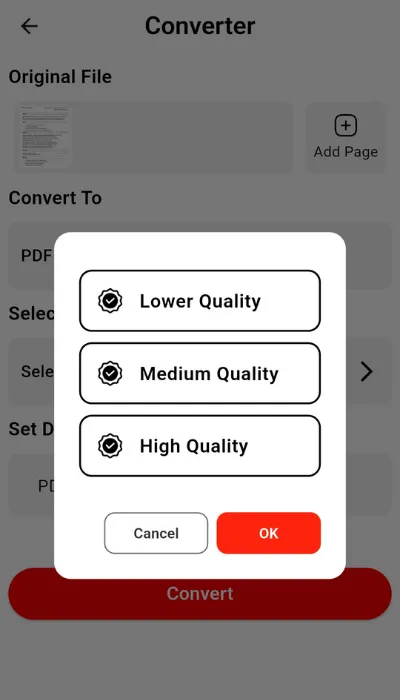
Most apps have options to choose output quality. Choose your desired quality. Tap the convert button and save the converted JPG image to your phone
When Should You Convert PDF to JPG?
PDF is one of the best formats for everyday document use, but it’s not always the right tool for the job. Converting to JPG is more useful. Here’s a quick way to decide:
Convert to JPG when:
- You need to share something on social media or messaging apps
- Someone asks you for an “image version” of your PDF file
- You want to drop a PDF page into a design or another image
- You only need one or two specific pages, not the whole document
- The person on the other end can’t open PDF files easily
Stick with PDF when:
- The document is going to be printed, and quality matters
- The text needs to stay selectable or editable
- You’re sending something formal, a contract, a resume, or an invoice
- File size is a concern, and you need tight compression
Common Problems and Solutions
Converting PDF to JPG is very simple, but sometimes people face problems while converting. Here are some common problems and solutions.
PDF won’t upload
Your PDF file is not uploading because it’s too large, or the connection gave up halfway through. Before anything else, try compressing your PDF to reduce the size. Then attempt the upload again. Also, make sure you’re on Wi-Fi. A weak mobile data signal can take longer to upload.
Images look blurry
The images look Blurry is because the output quality setting was too low. If your tool gives you a quality option, go with High Quality or Original Resolution. That’s where the sharpness lives. Also, avoid converting the same file over and over.
Large PDF takes too long
Big files with lots of pages or high-resolution images are going to take longer time to convert; that’s just the reality. Instead of converting all 30 pages at once, break it into smaller batches of 5. Or skip the online tool entirely and use an Android app instead, since it works offline locally on your device, and there’s no upload wait or download.
PDF vs JPG: Which Format Should You Use?
If you want your document to look exactly the same every time it’s opened by anyone, keep it as a PDF. Because the PDF format preserves your document as it was created, its layout stays locked no matter where you open it on any device or screen. This format is best for contracts, invoices, resumes, and reports.
JPG is a different story. It’s the format you reach for when you want to share one page as an image. whether that’s uploading to a website, posting somewhere that won’t accept a PDF, or sending something through a messaging app where people can preview and see it without downloading. JPGs also sit nicely in your phone gallery and play well with most photo editing apps.
So the simple rule is this: PDF keeps your document intact, JPG makes it easy to share. Pick based on what matters most in that moment.
Related PDF Tools That You May Use to Convert Using a Mobile Phone
We provide an all-in-one PDF solution; you may use other related PDF tools for your daily workflow. Here are some related tools that might help with your everyday tasks
- PDF to PNG — Need a transparent background or lossless image quality? PNG is a better choice than JPG for graphics and logos.
- PDF to Word — Convert a PDF back into an editable Word document. Perfect when you need to modify a file you only have as a PDF.
- PDF to Excel — Extract tables and data from a PDF directly into a spreadsheet. Saves hours of manual copying.
- PDF to PPT — Transform your static PDF file into a PowerPoint presentation slide.
- PDF to Text — Instead of manual typing, you can extract text from your PDF.
Frequently Asked Questions
Can I convert a PDF to JPG without installing an app?
Yes, you can use an online browser-based PDF converter tool to convert PDF to JPG without installing an app.
Does Android reduce Image quality?
Android itself doesn’t reduce quality; it depends on the conversion tool you use. Always look for a quality or DPI setting and set it to High DPI for sharp output. Low-quality tools
Can I convert multiple PDF pages?
Yes. Most online tools and Android apps support full-document conversion, meaning every page of your PDF becomes a separate JPG file.
Is my file secure during conversion?
Yes, most modern PDF converters use a secure encryption system and remove your data after the conversion process is done.
Can I convert scanned PDFs?
Yes, most converters use OCR (Optical Character Recognition) to detect text from scanned documents.
Final Thought
You don’t need a laptop, a complicated setup, or a paid subscription to convert your files into a different format. Whether you use a browser-based tool or an Android app, the whole thing takes under a minute once you’ve done it once. The trick is matching the method to your situation. In a hurry with a good internet connection? Go online. Dealing with a sensitive file or no Wi-Fi? Use the Android app. Either way, you’re covered.