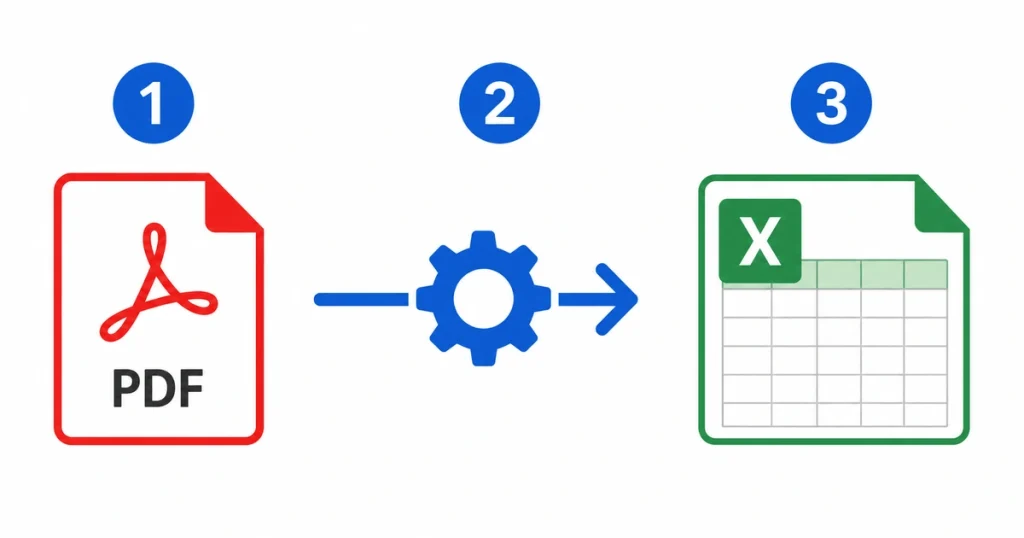
PDF files are great for sharing. But when you need to edit data, they become a headache. You can’t sort rows, run formulas, or filter numbers inside a PDF. That’s where a PDF to Excel converter helps. It pulls the data out and puts it into a spreadsheet you can actually work with. In this guide, you’ll learn 5 easy ways to do it. Some are free. Some work without an account. Let’s get started of how to convert PDF to Excel.
Why Convert PDF to Excel?
PDFs are read-only. You can view the data, but you can’t edit it. Excel is different. You can calculate, filter, sort, and analyze data however you want.
People usually need this for:
- Bank statements
- Invoice records
- Financial reports
- Survey results
- Inventory lists
Manually retyping all that data takes hours. A converter does it in seconds.
5 Best Ways to Convert PDF to Excel in 2026
Not all methods work the same way. Some are faster, some are more accurate, and some work better for scanned files. Pick the one that fits your situation.
Method 1: Use PDF Converter (Free, No Account Needed)
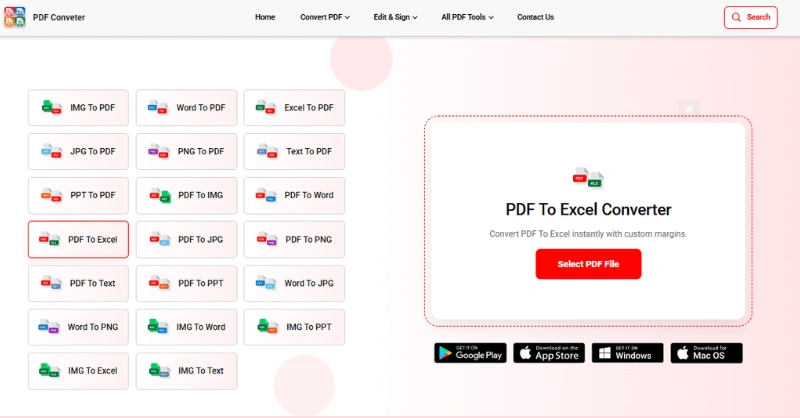
Best for: Anyone who wants a quick, no-fuss solution.
This is the easiest option if you want something fast and free. Go to pdfconveter website and upload your PDF file. The tool converts it to Excel automatically. No sign-up, no hidden fees, no limits. It works for both regular PDFs and scanned documents. The table structure stays intact after conversion.
Method 2: Use Adobe Acrobat Online
Best for: One-off conversions with high accuracy.
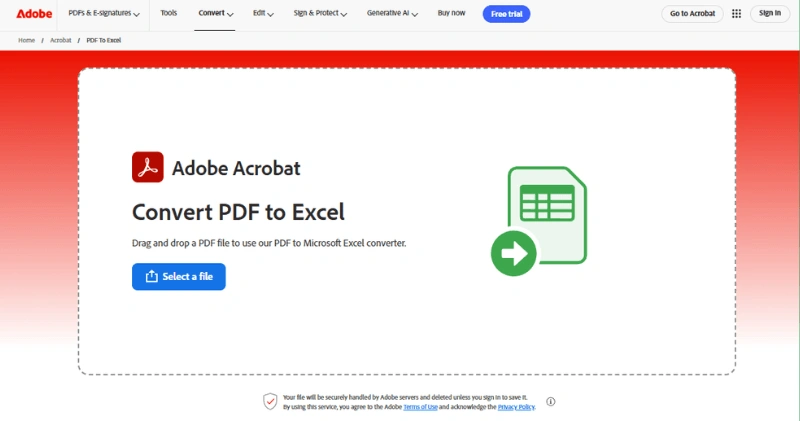
Adobe Acrobat has a free online PDF to Excel tool. It’s accurate and handles most PDF types well. Even tables with complex formatting convert cleanly without losing the structure. Just keep in mind that Adobe asks you to log in if you convert more than one file.
To get started, go to Adobe Acrobat’s PDF to Excel page and upload your file. Wait a few seconds for the conversion to finish, then download your Excel file. That’s it.
Method 3: Use Microsoft Excel Directly
Best for: Microsoft 365 users who want to stay inside Excel.
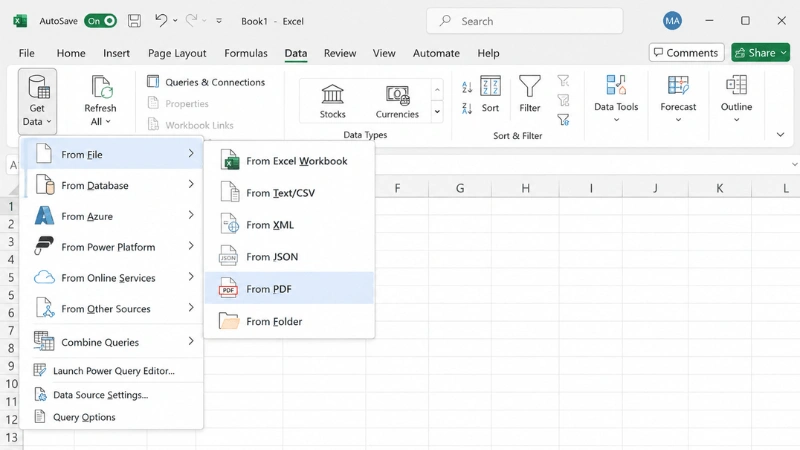
If you have Microsoft 365, you don’t need any extra tools. Excel can import PDF files on its own. Open Excel and go to the Data tab. Click Get Data > From File > From PDF and select your file.
Excel will show you the tables it finds in the PDF. Just pick the one you need and import it. This method keeps formatting very clean. It works best for text-based PDFs, not scanned ones.
Method 4: Use Free Online Tools (Smallpdf, iLovePDF, Nitro)
Best for: When you want options to compare.
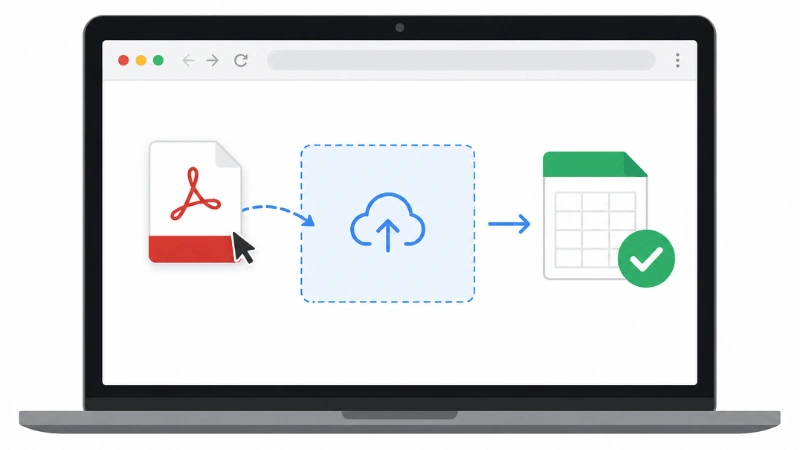
There are several good free tools online. Each has slight differences in speed, file size limits, and how well they handle complex tables. So it’s worth trying a couple to see which one works best for your file.
- Smallpdf: Clean interface, free with limits, good OCR
- iLovePDF: Supports multiple languages, batch conversion available
- Nitro: No email required, fast processing
All of them follow the same basic steps. Upload your file, convert, and download.
Method 5: OCR for Scanned PDFs
Best for: Printed documents, old reports, or physical papers that were scanned.
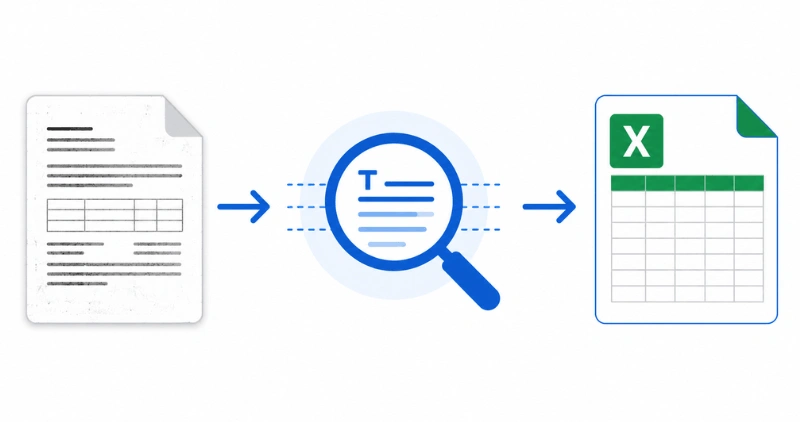
A scanned PDF is basically an image. Normal converters can’t read it. You need OCR In a hurry? Use a free online tool. Have Microsoft 365? Import directly inside Excel. Working with a scanned file? Just make sure OCR is supported. No more manual retyping. It’s simpler than you think.(Optical Character Recognition) technology. OCR looks at the image and recognizes the text in it. Then it converts that into editable data.
Tips for better OCR results:
- Use a high-quality scan (300 DPI minimum)
- Make sure the page is straight, not tilted
- Avoid shadows on the document
Tools like PDFconveter, Smallpdf Pro, and Adobe Acrobat all support OCR. So even if your document is old or printed, you can still get clean Excel data from it.
Best PDF to Excel Converter Tools in 2026
| Tool | Free | Account | OCR | Batch |
| PDF Conveter | 100% Free | No | Yes | Yes |
| Adobe Acrobat | Limited | Yes | Yes | Paid only |
| Microsoft Excel | Paid (M365) | Yes | No | No |
| Smallpdf | Limited | Optional | Paid | Paid |
| iLovePDF | Limited | Optional | Yes | Limited |
| Nitro | Limited | No | Yes | Paid |
All these tools get the job done. But if you want something completely free with no account, pdf conveter is the easiest pick. For scanned PDFs, make sure OCR support is available in the tool you choose.
Tips to Get Better Results
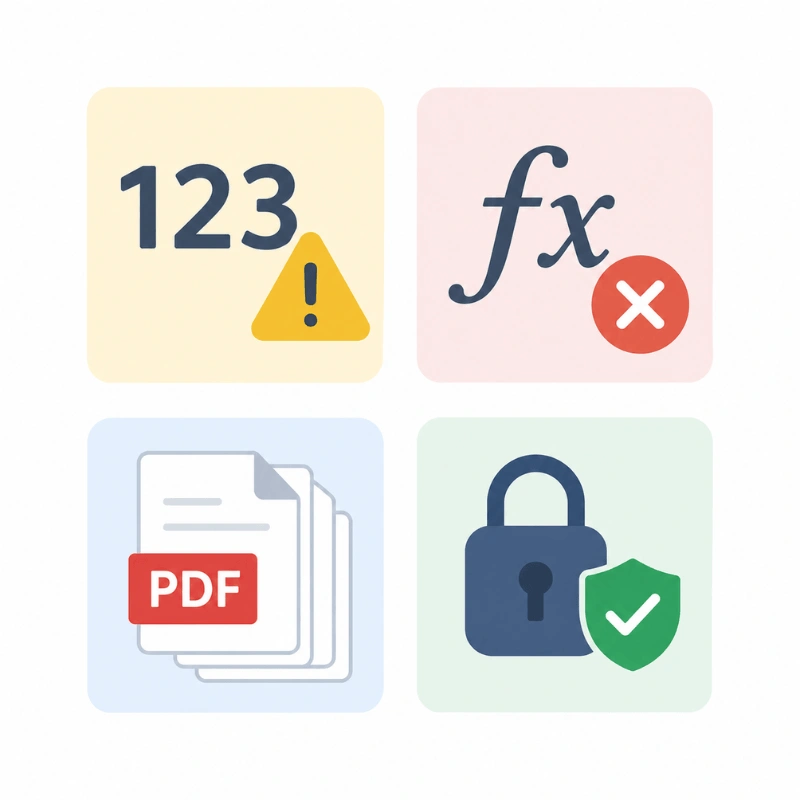
Converting a PDF to Excel is simple. But a few things can go wrong. Here’s how to avoid common problems.
- Check your numbers after conversion. Sometimes numbers get converted as text. In Excel, select those cells and click “Convert to Number.”
- Re-add formulas manually. PDFs don’t store formulas. Only the final values transfer over. You’ll need to recreate any SUM or AVERAGE formulas yourself.
- For multi-page PDFs, most tools create separate sheets for each page. Check if you need to merge them.
- Keep sensitive files secure. If your PDF has private financial or personal data, use a tool that deletes files after conversion.
Frequently Asked Questions
Can I convert a scanned PDF to Excel for free?
Yes, you can convert a scanned PDF to Excel for free using OCR-supported tools like PDFConveter. Just upload your file, and the tool reads the text automatically.
Will formulas be preserved after conversion?
No, PDF files only store the final values, not the formulas behind them. After conversion, you will need to add formulas like SUM or AVERAGE back in Excel manually.
How do I convert a multi-page PDF into one Excel sheet?
Most tools convert each page into a separate sheet. To combine them, open the Excel file, copy the data from each sheet, and paste everything into one single sheet.
Is it safe to upload my PDF to an online converter?
Yes, if the tool deletes your file after conversion. Before uploading sensitive documents, always check the privacy policy to confirm files are removed after processing.
What is the best free PDF to Excel converter in 2026?
PDF Conveter is one of the best free options in 2026. It requires no account, has no hidden fees, and supports both regular and scanned PDFs with OCR.
Conclusion
Converting a PDF to Excel doesn’t have to be complicated. Pick the method that fits your situation, and you’ll have your data ready in seconds. In a hurry? Use a free online tool. Have Microsoft 365? Import directly inside Excel. Working with a scanned file? Just make sure OCR is supported. No more manual retyping. It’s simpler than you think.