 IMG to PDF
  Word to PDF
  Excel to PDF
  JPG to PDF
  PNG to PDF
  Text to PDF
  PPT to PDF
  PDF to Image
  PDF to Word
  PDF to Excel
  PDF to JPG
  PDF to PNG
  PDF to Text
  PDF to PPT
  Word to JPG
  Word to PNG
  IMG to Word
  IMG to PPT
  IMG to Excel
  IMG to Text
  Merge PDF
  Split PDF
  Organize PDF
  OCR PDF
  Delete Page
  Add Page To PDF
  Compress PDF
  PDF Form Filler
  Fill Out PDF
  Create Fillable PDF
  Edit PDF
  Crop PDF
  Sign PDF
  Rotate PDF
  Add Watermark
  Add Number page
  Protect PDF
  Unlock PDF
  Redact PDF
  PDF To PDF/A
  PDF Translator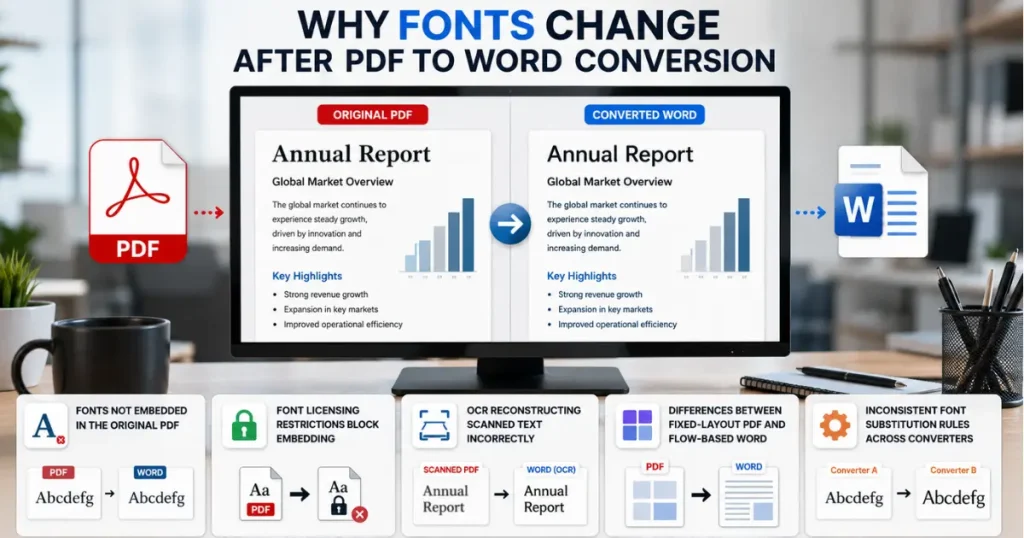
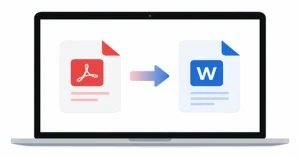
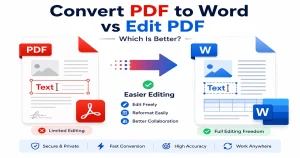
PDF files are designed to keep documents looking the same, including the fonts and overall layout. But when you change a PDF into a Microsoft Word document, the fonts might be different. The document does not look like the original. This can make it harder to read. It can also affect how the pages are laid out and how professional the file looks.
In this guide, you’ll learn why fonts change during PDF to Word conversion and how to prevent or fix it. You just converted an important report to Word, and suddenly the entire document is in Calibri instead of your company’s brand font. Sound familiar? This guide walks you through the exact causes and proven fixes to keep your formatting intact.
What Does Font Change Actually Mean in a Converted Document
When you change a PDF to a Word document, the original font may not look the same. The converter might use a font or make the font bigger or smaller. It might even change the spacing of the words or the font style. This can make the document look different, and the text might move around; the pages might look different.
The formatting can get messy. Knowing what these font changes mean can help you figure out what is wrong and pick the way to make the document look like it did before.
Why Fonts Change After PDF to Word Conversion
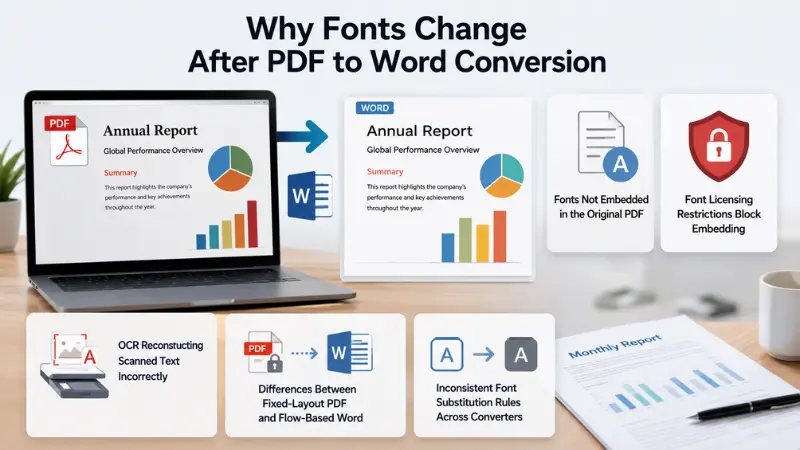
PDFs are built to preserve a document’s exact look, while Word documents are designed to be easily edited, and that core difference is why fonts often shift during conversion. If your computer doesn’t have the original font installed, or the font wasn’t embedded in the PDF, Word automatically substitutes a similar font, which can throw off spacing, sizing, and overall layout.
Substitute it with something similar, which can throw off spacing, sizing, and overall layout. Scanned PDFs add another layer of risk, since OCR has to reconstruct text and formatting from an image rather than reading real font data. The good news: once you know the cause, most font issues are quick to fix.
| Cause | Quick Fix |
| Font not embedded in the original PDF | Re-export the PDF with embedded fonts, or use standard fonts like Arial, Calibri, or Times New Roman. |
| Font licensing restrictions | Choose widely supported, embeddable fonts to prevent substitution during conversion. |
| OCR misreading scanned text | Scan documents at 300 DPI or higher and use a PDF converter with advanced OCR. |
| Fixed-layout PDF vs. editable Word | Whenever possible, convert the original digital PDF instead of a scanned copy for better accuracy. |
| Different font substitution rules across converters | Use the same trusted PDF-to-Word converter consistently to maintain formatting and fonts. |
Fonts Not Embedded in the Original PDF
If you have a PDF and want to convert it to a Word document, you might run into font issues. The PDF to Word converter might not be able to find the fonts. The converter will use fonts that are on your computer instead. This can make the document look different. The words might be together or farther apart. The whole layout can be changed.
To avoid problems with fonts:
- Check if the PDF has the fonts embedded in it.
- If you can, make a PDF with the fonts embedded in it.
- Use common fonts like Arial or Times New Roman.
- Use a PDF-to-Word converter to convert the PDF.
When the fonts are embedded in the PDF, it helps the document look the same. The PDF to Word converter will not have to replace the fonts much. This means the document will look more like a PDF. Embedding fonts in the PDF is a good idea. It helps keep the document looking the way it is supposed to look.
The PDF to Word converter can do a job when the fonts are embedded. For example, if a PDF uses a custom brand font and that font isn’t embedded, Word will silently substitute it with a default font like Calibri without warning you.
Font Licensing Restrictions Block Embedding
Some fonts come with licensing rules that prevent them from being embedded in a PDF. When this happens, the PDF to Word converter has no choice but to replace them with similar-looking alternatives, often changing the font style, spacing, and overall layout. This can make the document look different, such as the font style, the spaces between words, and how things are laid out.
To avoid this problem:
1. Use fonts that can be embedded.
2. Pick fonts that a lot of people use, like Arial, Calibri, or Times New Roman when you can.
3. Check the settings for the PDF to see if the fonts are embedded before you change it.
4. Look at the Word document after it is changed to see if any fonts were replaced.
Using fonts that can be embedded helps keep the way things look and cuts down on changes to fonts when you change a PDF to a Word document. Font licensing restrictions like these can be an issue, so using embeddable fonts is a good idea for PDF to Word conversion. This way, you can be sure that your Font looks the same.
OCR Reconstructing Scanned Text Incorrectly
OCR (Optical Character Recognition) converts text from scanned PDFs into editable text. However, if the scanned document is blurry, low quality, or difficult to read, OCR may recognise characters incorrectly. This can lead to the wrong fonts, missing letters, incorrect spacing, and formatting problems in the converted Word document.
To improve OCR accuracy:
- Use a clear, high-resolution scanned PDF.
- Choose a PDF to Word converter with advanced OCR support.
- Make sure the scanned pages are straight and easy to read.
- Review the converted document for any text or font errors.
- Correct any mistakes before saving the final document.
Using a high-quality scan and a reliable OCR tool helps produce a more accurate Word document with fewer font and formatting issues.
Differences Between Fixed-Layout PDF and Flow-Based Word
PDF and Word documents are designed differently. A PDF uses a fixed layout, meaning the text, images, fonts, and spacing stay in the same position on every device. Microsoft Word uses a flow-based layout, where text automatically moves and adjusts as you edit the document or change the page size. Because of this difference, fonts, spacing, and page layout may change during PDF to Word conversion.
To reduce layout changes:
- Use a reliable PDF to Word converter.
- Convert the original PDF instead of a scanned copy.
- Use common or embedded fonts in the PDF.
- Review the converted Word document for formatting differences.
- Make any necessary adjustments before saving.
Understanding the difference between PDF and Word layouts helps explain why font and formatting changes can occur during conversion and why some manual editing may still be needed.
Inconsistent Font Substitution Rules Across Converters
Not all PDF to Word converters handle missing fonts in the same way. When the original font is unavailable, each converter uses its own font substitution rules to replace it with a similar font. As a result, the same PDF may look different depending on the conversion tool you use, causing changes in font style, spacing, and page layout.
To get more consistent results:
- Use the same PDF to Word converter for every conversion.
- Choose a converter that supports embedded fonts.
- Use common or embedded fonts in the original PDF.
- Compare the converted document with the original PDF.
- Correct any font changes before sharing the document.
Using a reliable converter and consistent settings helps reduce font substitutions and keeps your Word document closer to the original PDF.
Signs Your PDF to Word Conversion Has a Font Problem
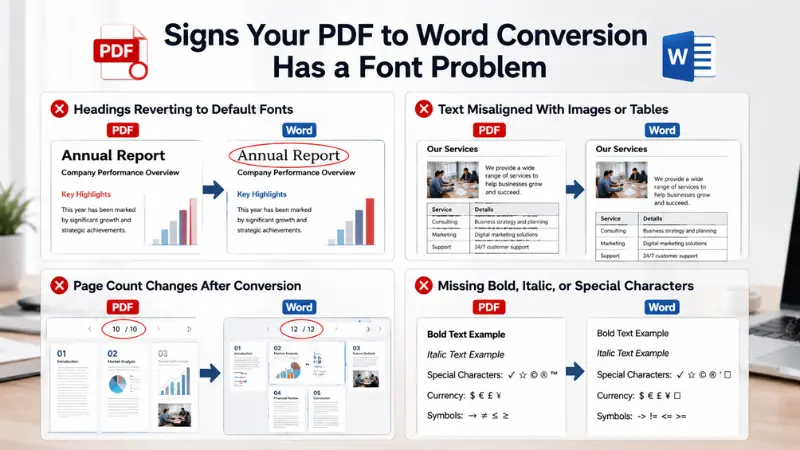
After converting a PDF to Word, it’s worth checking the document for common font-related issues before sharing or printing it. Mismatched styles, uneven spacing, or text that no longer fits the page are all signs the original formatting wasn’t fully preserved. Catching these early makes them much easier to fix.
Headings Reverting to Default Fonts
After converting a PDF to Word, headings may lose their original font and change to Word’s default font, such as Calibri or Aptos. This usually happens when the original heading font is missing, not embedded, or unsupported by the converter.
To fix this:
- Check whether the original fonts are installed.
- Apply the correct heading font in Microsoft Word.
- Use Word’s built-in Heading styles for consistency.
- Save the updated document after making changes.
Using the correct fonts helps keep your headings clear, consistent, and professional. This is especially common with PDFs made in design tools like Canva or Adobe InDesign, which often use non-standard display fonts.
Text Misaligned With Images or Tables
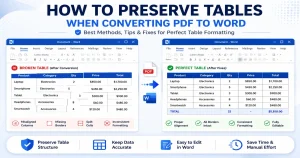
During PDF to Word conversion, text may shift away from images or tables because Word uses a flexible layout instead of a fixed one. This can make the document look untidy and harder to read. If tables specifically are losing their structure during conversion, see our guide on preserving tables during PDF to Word conversion for more details
To correct the alignment:
- Review each page after conversion.
- Move images or tables back into the correct position.
- Adjust text wrapping if needed.
- Check the spacing and page layout before saving.
Reviewing the document helps ensure text, images, and tables are properly aligned.
Page Count Changes After Conversion
A converted Word document may have more or fewer pages than the original PDF. Font substitutions, spacing changes, and layout adjustments can cause text to move onto different pages.
To reduce page changes:
- Use the original fonts whenever possible.
- Check page margins and spacing.
- Adjust font size or paragraph spacing if necessary.
- Compare the page count with the original PDF.
Making small formatting adjustments can help restore the original page layout.
Missing Bold, Italic, or Special Characters
Some PDF to Word conversions may lose bold text, italic formatting, or special characters such as symbols and accented letters. This usually happens when the converter cannot recognize the original formatting or the required fonts are unavailable.
To fix these issues:
- Compare the Word document with the original PDF.
- Reapply bold or italic formatting where needed.
- Replace any missing symbols or special characters.
- Install the original font if it is not available.
Checking the converted document carefully helps ensure that all formatting and special characters are displayed correctly. Special characters like em dashes, accented letters (é, ñ), and bullet symbols are the most commonly affected; always check these first.
How to Fix Font Issues After Conversion
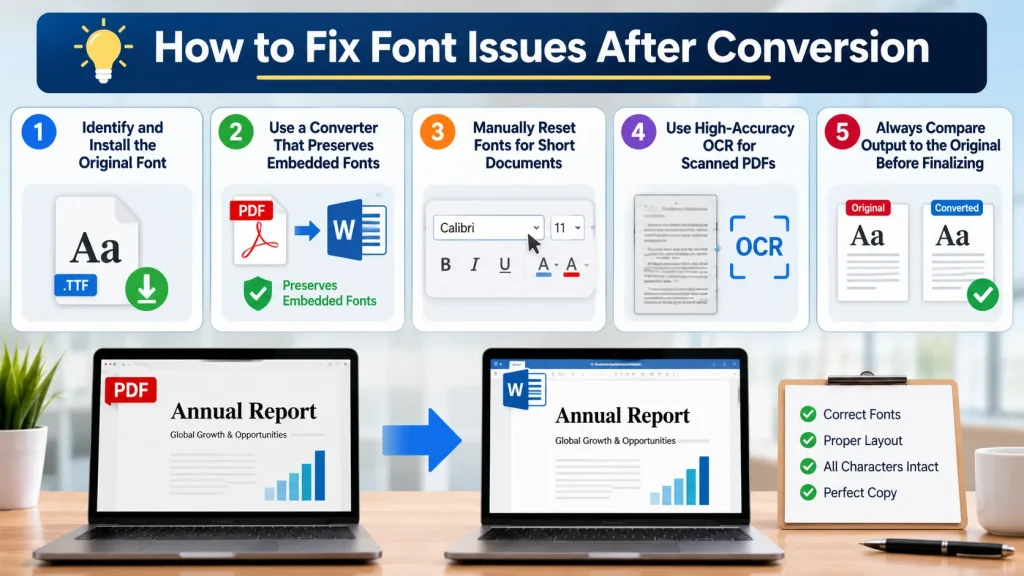
Most font issues after conversion come down to one root cause: the original font wasn’t available or embedded. The good news is these problems are usually quick to fix. Start by comparing the converted document with the original PDF, then use Word’s Replace Fonts feature or install the missing font directly.
Identify and Install the Original Font
If your Word document doesn’t look right, it’s likely because the original font isn’t installed on your computer. Once you download and install that font (where licensing allows), Word will be able to display your document correctly.
To make this right, you need to do a few things:
- Find out what font your PDF uses.
- Download the font and install it on your computer, if licensing allows.
- Open your Word document again.
- See if it now looks right with the font.
Using the font in your PDF helps your document look the same as the PDF. This is really important if you want your Word document to look like your PDF. Your Word document will look a lot better when it uses the font.
Use a Converter That Preserves Embedded Fonts
When you need to change a PDF file to a Word file, some tools are really good at keeping the fonts the same. These tools analyse the font information in the PDF and use it to make the text in the Word file as close to the original PDF as possible. If you pick the right tool, you can avoid using the wrong fonts and problems with text layout.
To keep the fonts the same:
- Choose a tool that can keep the fonts the same.
- Upload the PDF file that you want to change.
- Select Word as the type of file you want to get.
- Change the file. Download it.
- Look at the Word file and compare it to the original PDF file.
Using a tool to change your PDF file to a Word file helps keep the fonts and the way the text is laid out looking the same as the original PDF file. This makes your Word file look a lot like the PDF file. When you use a PDF to Word converter to change your PDF file to a Word file, it is an idea to use a reliable PDF to Word converter. A reliable PDF to Word converter will help you keep the original font style and the original layout of the PDF file when you change it to a Word file.
Manually Reset Fonts for Short Documents
If your document is really short, like a few pages, it is usually pretty easy to fix the fonts by hand. Microsoft Word is helpful because it lets you replace the wrong fonts without having to start all over again with the whole document. This way of doing things works well when you only have to fix a little bit of text.
To fix the fonts by hand:
- Open the document you got from converting it to Microsoft Word.
- Pick the text that has the font.
- Go to the part that says Home.
- Select the font from the list of fonts.
- Adjust the font size if it doesn’t match the original document.
- Save the document with the changes you made.
When your document is not very long, it only takes a minute to fix the fonts by hand, and it makes your document look clean and professional again. Fixing the fonts by hand in Microsoft Word is an idea when you have a short document and you want to make it look nice.
Use High-Accuracy OCR for Scanned PDFs
Scanned PDFs are made from pictures, not text that you can edit. To turn them into a Word document, the converter uses OCR to figure it out. A good OCR tool can do a better job.
To get better Optical Character Recognition results:
1. Use a scanned PDF that’s clear and has a high resolution.
2. Pick a PDF to Word converter with strong OCR support.
3. Turn the scanned PDF into a Word document.
4. Check the document you just converted to see if any of the fonts or formatting got changed.
5. Fix any problems that’re still there before you save the file.
Using a reliable OCR-based converter helps create a neat, accurate Word document, and you will not have to fix as many font problems by hand.
Always Compare Output to the Original Before Finalising
Before you save or share your converted Word document, it is an idea to compare it with the original PDF. This is a good thing to do, and it helps you find things like font changes, missing text, spacing issues or formatting errors that may have happened when you converted the document. If you take a minute to look over the document, you can stop mistakes from happening and make sure the final version of your Word document looks professional.
Before you finish working on your document, do these things:
- Open the PDF and the converted Word document at the same time.
- Look at the fonts, headings, spacing and page layout to make sure they are the same.
- Check that all the text appears correctly in the Word document.
- Fix any problems with the fonts. Formatting that you find.
- Save the version of your Word document after you have looked at everything.
Comparing the Word document with the original PDF helps you make sure the formatting is correct, and the final Word document is ready to use. This way, you can be sure that your Word document looks the way it is supposed to.
How to Prevent Font Issues Before They Happen
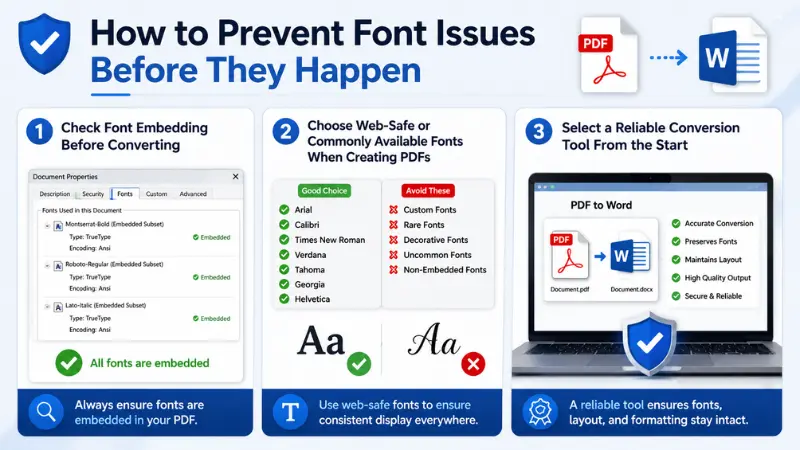
Some PDF-to-Word converters are really good at keeping the fonts looking the same. These good converters try to keep the font style, size, and layout looking like the PDF. If the font used in the PDF is not installed on your computer, or if the PDF is just a scan, the converter will use a similar font instead.
For the results:
1. You should use a PDF to Word converter that you can trust.
2. It is better to start with a PDF that has text in it, not one that’s just a scan.
3. You need to have the fonts on your computer.
4. After you convert the PDF to Word, check the file. Change any fonts that do not look right.
Using a PDF-to-Word converter and the original PDF can help your document look almost the same after conversion. PDF to Word converters can be very helpful, and PDF to Word conversion is a step in keeping your document looking good. When you use a PDF to Word converter to convert your PDF, the goal is to keep your PDF looking the same, and a good PDF to Word converter can do that.
Check Font Embedding Before Converting
Font embedding is really important when you are working with PDFs. It means that the original fonts are stored inside the PDF. This makes it a lot easier for a converter to figure out what the fonts are and keep them the same. If the fonts are not embedded, the converter might switch them out for other fonts. This can really change the way the document looks.
Before you convert your PDF, you should do a few things.
1. Open the PDF and take a look at it.
2. Check to see if the fonts are embedded in the PDF.
3. If your PDF creation tool allows it, export the file with fonts embedded before converting.
4. Then you can convert the PDF to Word.
Using embedded fonts is helpful because it keeps your document looking a lot like the original PDF after you convert it to Word. This is especially important if you want things to look just right. Font embedding really helps with this.
Choose Web-Safe or Commonly Available Fonts When Creating PDFs
When you make a document, it is a good idea to use fonts that everyone has, like Arial, Calibri, Times New Roman, or Verdana. This way, when you convert the document, the font will not be changed. These fonts are on computers and work with the programs that make PDF files and Word documents.
For things to work together:
- Use the standard fonts that come with the computer whenever you can.
- Do not use fonts that are not common or that you made yourself unless you put them in the document.
- Save the PDF file after you check that the right fonts are being used.
Using fonts that lots of people have helps the document look the same on computers and devices. This is because the fonts are the same, so the document will look like it is supposed to, no matter where you open it. Using fonts like Arial, Calibri, Times New Roman, or Verdana is a good idea because they are common fonts.
Select a Reliable Conversion Tool From the Start
The PDF to Word converter you use is really important for keeping the fonts looking right. If you have a converter, it will probably keep the same fonts, spacing, and layout as the original. This means you will not have to fix things by hand after you convert the file.
When you are picking a converter, you should look for these things:
- Font preservation support
- Layout retention
- OCR support for scanned PDFs
- Fast and secure conversion
- High-quality document formatting
If you start with a converter that you can trust, you will get a Word document that looks a lot like the PDF. Using a PDF to Word converter is the key to getting a good Word document.
Frequently Asked Questions
Why Does My PDF Font Look Different in Word
Your PDF font may look different in Word because the original font is not installed on your computer or was not embedded in the PDF. When this happens, Microsoft Word replaces it with a similar font, which can change the appearance, spacing, and layout of the document. Font differences are also common when converting scanned PDFs or using low-quality conversion tools.
To reduce font issues:
- Use a PDF with embedded fonts whenever possible.
- Convert the file using a reliable PDF to Word converter.
- Install the missing fonts if they are available.
- Review the converted document and replace incorrect fonts if needed.
Following these steps helps keep your Word document looking as close to the original PDF as possible.
How Do I Keep the Same Font When Converting PDF to Word
To keep the same font when converting a PDF to Word, use a reliable PDF converter that supports font preservation. Make sure the fonts used in the original PDF are available or embedded in the document before conversion.
After converting, open the Word file and check the formatting. If a font is missing, Word may automatically replace it with a similar font, which can change the document’s appearance.
To prevent font changes:
- Use a converter with accurate font recognition.
- Avoid converting low-quality or scanned PDFs.
- Check font settings after conversion.
Using the right conversion method helps maintain the original font style, size, and overall document layout.
Can OCR Preserve Original Fonts
OCR (Optical Character Recognition) can recognise text from scanned PDFs, but it usually cannot perfectly preserve the original fonts. Instead of keeping the exact font style, size, and spacing, OCR creates editable text based on what it detects from the image.
The final result depends on the quality of the scanned document and the OCR software being used. For better font preservation, use a high-quality PDF converter with advanced OCR features and always review the converted document for any formatting changes.
Why do fonts change when I convert a PDF to Word?
PDFs embed font outlines directly in the file, but Word relies on fonts installed on your computer. If the converter can’t find or embed the original font. It substitutes the closest match, which shifts spacing, line breaks, and sometimes the whole layout.
Conclusion
When you change a PDF to Word, the font often looks different. This is a problem, but it can be fixed. The reason for this is that the font you used in the PDF might not be available in Word. Also, the way the document is formatted.
The way you convert it can cause problems. To fix this, you can use a PDF to Word converter. You should also install any fonts that are missing. Then you need to check the document to make sure everything looks right. This way, your document will look good and professional.
Ready to convert your PDF without worrying about font issues? Try pdfconveter.com free PDF to Word converter. It is built to preserve your original formatting automatically