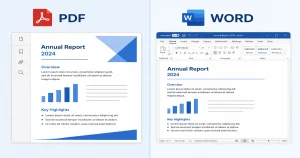
Need to turn a photo into a PDF? Or convert a Word file before sending it? You’re not alone. PDF files are everywhere. Job applications, school assignments, receipts, contracts. They all need PDFs. But most people don’t have a good tool on their phone. That’s where a solid PDF converter app helps.
In 2026, the best apps do more than just convert files. They scan documents, edit pages, compress large files, and work offline. All from your phone. This guide breaks down the top PDF converter apps this year.
We tested each one for speed, quality, and ease of use. Whether you need to convert images, edit PDFs, or scan paper documents, there’s an app here for you. Our top pick? PDF Converter: Scanner & Maker. It packs 21 tools into one app, and some features work without an internet connection. Let’s dive in.
What Makes a Good PDF Converter App?
There are many PDF converter apps available online, but not all apps are the same. Some apps are slow, and some are fast. Moreover, some apps provide excellent services, but they have paywalls in the form of subscription plans that allow users to use their best tools. Here’s what makes a great app stand out from the rest.
Offline Support
A good app should convert files locally on your phone, since the internet isn’t always available. Some conversions, like Image to PDF and Text to PDF, should convert files without an internet connection. However, some conversions, such as PDF to Word, PDF to Excel, and PDF to PPT, require an internet connection.
Multiple Format Support
The best apps must support all these formats, like Word, Excel, PPT, Text, JPT, PNG, and more. A good app should cover all your needs, not just one file type.
OCR (Optical Character Recognition)
A good converter app must support OCR. This helps the app extract and make editable text from scanned documents or images. This is essential for students and office workers.
Clean, Simple UI
Some app confusing designs that users can’t understand; they need a tutorial to find the convert button. So, a good converter must have a clean, simple, user-friendly UI.
Pricing Transparency
Some converter apps advertise as free, but after conversion, they require a paywall. A good app should be transparent and explain its pricing, limits, and features.
Security
Security is a major concern in today’s digital world. A reliable app should protect user data by using encryption and deleting uploaded files after conversion.
File Compression
File compression is very important, especially for email attachments. A good app should compress large files into smaller ones without sacrificing quality.
Best PDF Converter Apps list in 2026
There are many apps available today, but not all apps are good. We have made a list of the best PDF converter apps in 2026 below.
1. PDF Converter: Scanner & Maker
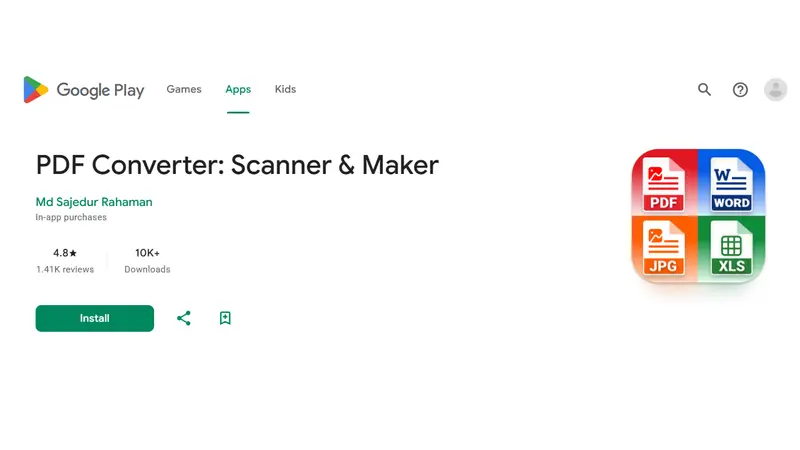
Best for: Anyone who needs an all-in-one PDF tool with offline support
Rating: 4.8 ★ (Google Play)
PDF Converter: Scanner & Maker is an all-in-one, complete PDF converter mobile app available in 2026. It offers offline and online services; it has up to 21 essential tools that cover all major file conversion needs. Conversions like image to PDF, JPG to PDF, and text to PDF can run without internet, which makes it a better choice for offline use. This app allows you to sign and edit PDFs, and that can make your daily work easy and smart
Key Features
- 21tools in one app, covering all major file conversion needs
- Convert from Image, Word, PPT, Excel to PDF
- Merge, Split, Compress, Rotate, Sign, and more
- Batch conversion: convert multiple files in one go
- Built-in document scanner with edge detection
- OCR support for scanned documents
- Simple, beginner-friendly interface
- Password protection and encryption
Pros
- Some tools are available offline
- All major formats supported
- Fast conversion speed
- Clean and simple UI
- One app replaces multiple tools
Cons
- Some advanced tools require an in-app purchase
Why It’s Our Top Pick
Most PDF apps either need the internet or limit you to one or two tools on the free plan. PDF Converter: Scanner & Maker gives you half of its tools offline, in one clean app. For everyday Android users, that’s hard to beat.
2. Image to PDF – PDF Maker
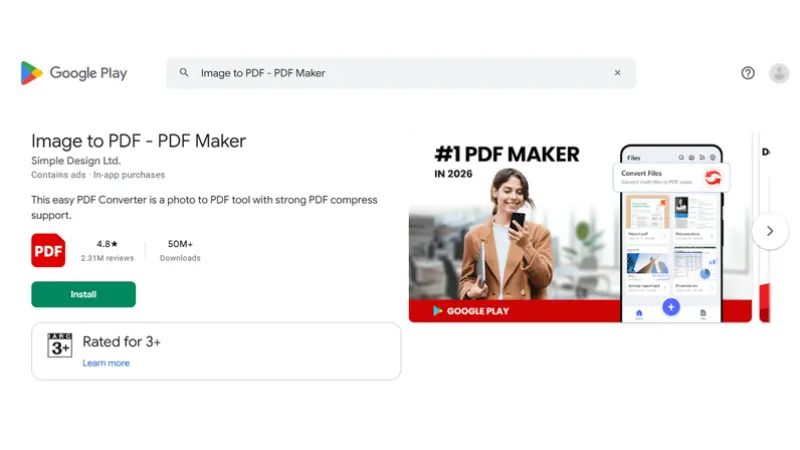
Best for: Converting images to PDF offline
Rating: 4.8 ★ (Google Play)
Image to PDF – PDF Maker can convert images to PDF, JPG to PDF, and other image formats. It has a PDF reader that allows scanning and lists all PDFs to read easily. You can resize and compress files, set image quality to high, low, or medium. This is a very good app for image conversions.
Key Features
- Convert all kinds of images to PDF
- Images resizer
- PDFs reader
- PDF file compressor
- Password protection
Pros
- Free
- Tools available offline
Cons
- Only converts images to PDF
3. PDF Converter
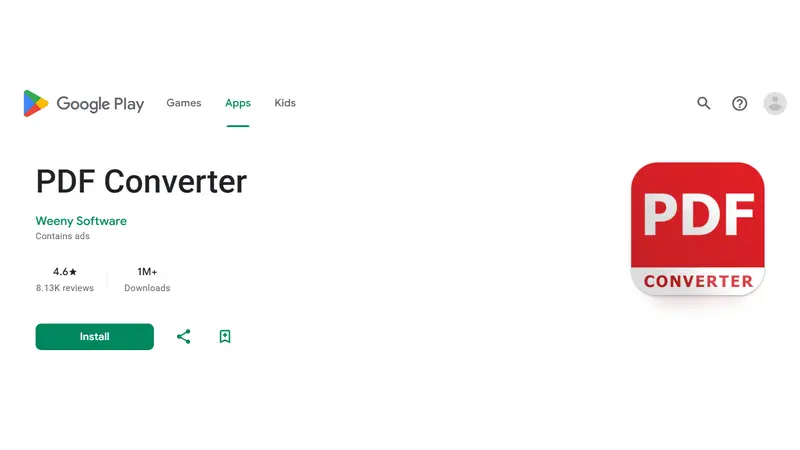
Best for: Users who need to convert between multiple file formats
Rating: 4.6 ★ (Google Play)
PDF Converter allows you to convert multiple file formats like Word, Excel, PPT, and JPG to PDF and also convert back to PDF. This app offers certain tools offline, such as PDF to JPG, but advanced features like PDF editing, splitting, merging, and compression require an active internet connection.
Key Features
- Converts Word, Excel, PowerPoint, EPUB, XPS, HTML, WEBP to PDF
- Converts PDF back to Word, PowerPoint, EPUB, HTML, TXT, JPG
- PDF editing: split, merge, and compression.
Pros
- Supports many formats
- Covers both directions: to PDF and from PDF
- Great for students, freelancers, and office workers
Cons
- Some format conversions may require an internet connection
- Advanced features need a paid upgrade
4.PDFelement-PDF Editor & Reader
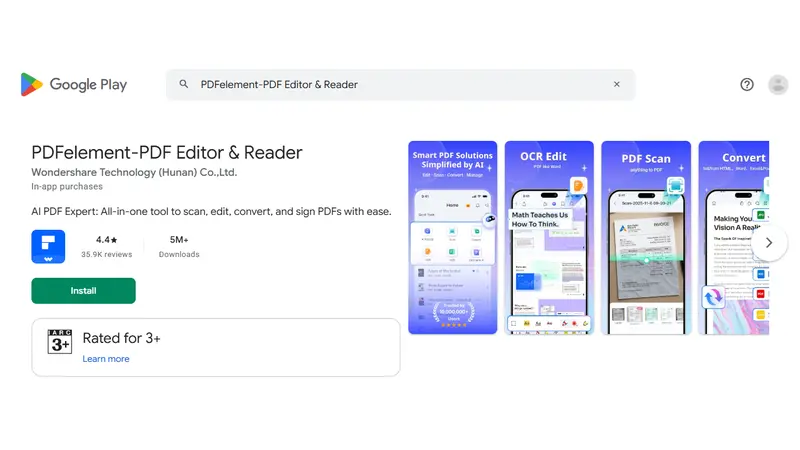
Best for: Student professionals who need AI features, OCR, and full PDF editing
Rating: 4.4 ★ (Google Play)
PDF element goes beyond basic conversion; it offers chat with PDF and an AI record. It has multiple features like editing, signing, and converting to PDF. This makes PDFelement a versatile solution for both personal and professional use.
Key Features
- Converts PDF to Word, Excel, PPT, JPG, PNG, and back
- Converts from Word, IMG, JPG, PNG, Excel, and PPT to PDF
- AI-powered tools: Chat with PDF, AI Summarize, AI Translate (60+ languages)
- Smart HD Scanner with OCR extracts text from scanned images and documents
- Edit text and images directly inside a PDF
- Merge, split, compress, rotate, and organize PDF pages
- Password protection and encryption for sensitive files
Pros
- AI tools add real practical value (summarize, translate, Q&A)
- Strong OCR with dedicated scan modes (ID cards, invoices, whiteboards)
- Works on Android 7.0 and up
Cons
- Large app size (127 MB)
- Expensive paid subscriptions
- Can feel overwhelming for users who only need simple conversions
5. PDF Reader, Editor, Converter
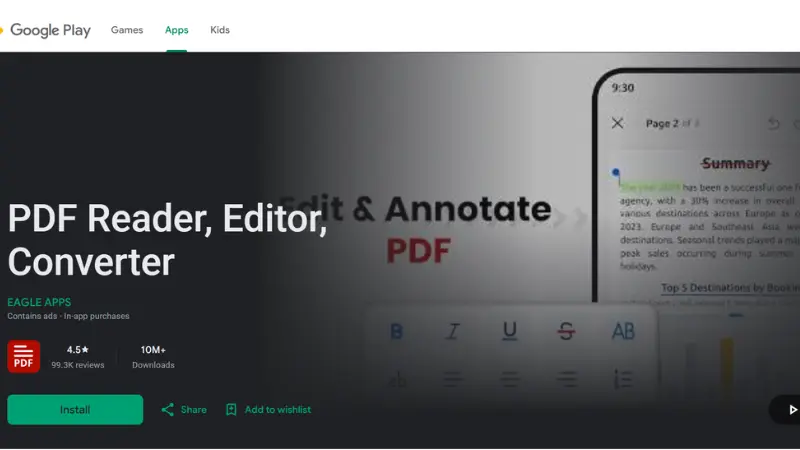
Best for: Students and general users who want a PDF converter with a reader
Rating: 4.5 ★ (Google Play)
PDF Reader, Editor, Converter is not dedicated to only file conversion, but it’s a full document workflow, allowing users to read, edit, and convert.
Key Features
- Converts PDF to Word, Excel, JPG, and PNG files
- Convert from Word, JPG, PNG, and Excel to PDF
- OCR text recognition: extract text from scanned documents
- Merge, split, compress, rotate, and delete PDF pages
- Annotate: highlight, underline, strikethrough
- Signature support: sign without printing
- Password protection
Pros
- Covers reading, editing, scanning, and converting in one app
- Clean and beginner-friendly interface
- OCR included
- Works with all PDF formats, including large files
Cons
- No cloud storage or sync feature mentioned
- Long-term reliability and update support are less established
6. CS PDF Reader- PDF Editor
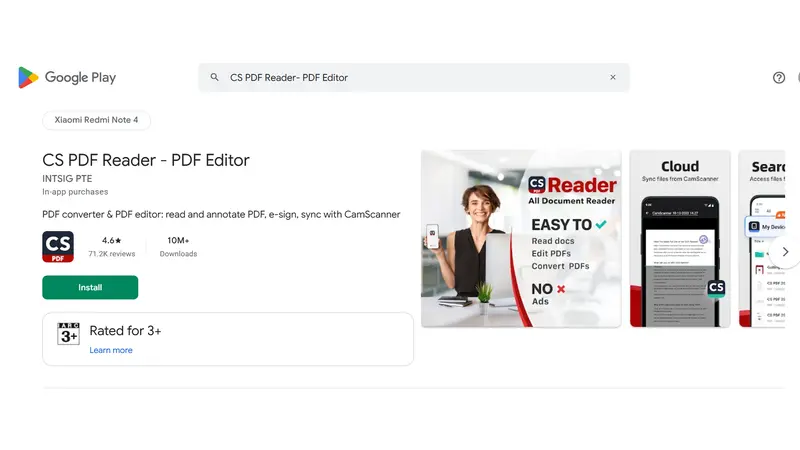
Best for: Students and casual users who need basic PDF conversion
Rating: 4.6 ★ (Google Play)
This app is great as a lightweight companion tool for reading, scanning, and converting PDF files into different formats like Word, JPG, and Excel. CS PDF Reader is good for scanning documents.
Key Features
- Converts from Word, Excel, PPT, and images to PDF
- Converts PDF to JPG, Word, PPT, Excel
- Built-in document scanner with auto background removal and edge trimming
- High-Definition scanning mode available
- E-signature support with adjustable size and placement
- Annotate: highlight, underline, strikethrough
Pros
- Ad free
- Compatible with Microsoft, Google, and Adobe files
- Clean, easy-to-use interface
Cons
- Heavily dependent on CamScanner, not a fully standalone app
- No offline conversion support for advanced tools
- The OCR feature is not clearly available
- Compression and page organization tools not available
- No password protection or PDF security features available
7. Adobe Acrobat Reader: Edit PDF
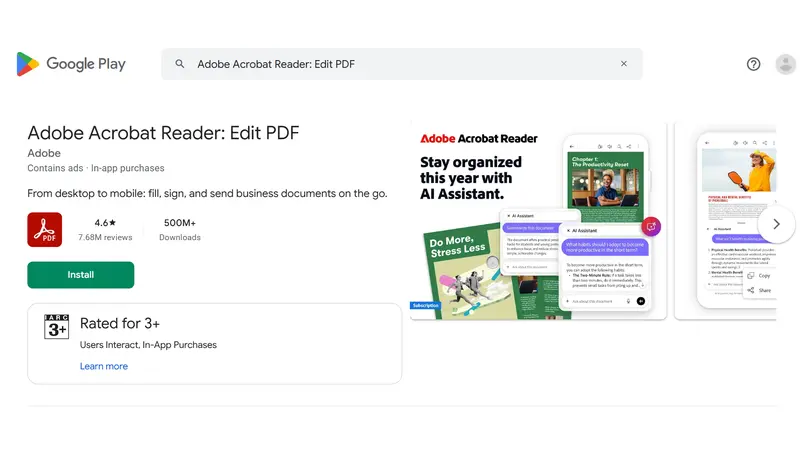
Best for: Adobe users, not budget-conscious Android users
Rating: 4.6 ★ (Google Play)
Adobe Acrobat Reader is a great converter app for users who are willing to pay for premium PDF solutions. It offers a wide range of features, but most of them are paid tools.
Key Features
- View, annotate, comment, and sign PDF documents
- Edit text and images directly inside PDF files
- Convert PDF to Word, Excel, PowerPoint, and images
- Create PDFs from Microsoft, Google Docs, and image files
- Merge, split, rotate, crop, and reorder PDF pages
- Compress PDF and password-protect documents
- AI Assistant: summarize, Q&A, voice prompts and cited answers
- PDF Spaces for collaboration and file sharing
- Read Aloud feature with voice options
Pros
- Globally trusted brand
- AI-powered tools for summarizing and Q&A
- Connects with major cloud storage platforms
- Fill & Sign available for free
Cons
- Almost every useful feature requires a paid subscription
- AI Assistant is a separate paid add-on, not included in the base plan
- No true offline conversion- internet required for most tasks
- Complex interface. Not beginner-friendly
- High-quality Read Aloud voices cost extra
- Overwhelming for users who just need simple PDF conversion
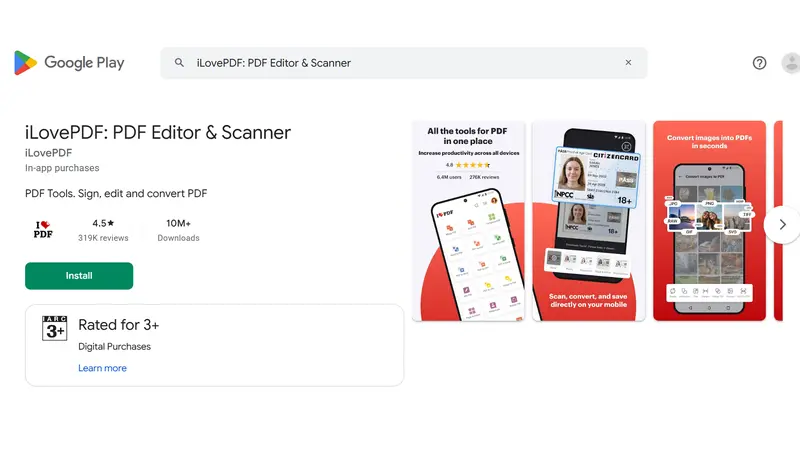
8. iLovePDF: PDF Editor & Scanner
Best for: Students and everyday PDF users
Rating: 4.5 ★ (Google Play)
iLovePDF is one of the best web-based tools now available for Android as well. It provides all the essential tools needed for a standard PDF workflow, including conversion, compression, merging, splitting, and document organization. However, Most of the tools require a paid subscription.
Key Features
- Converts JPG and MS Office files to PDF and PDF to (Word, Excel, PowerPoint)
- Built-in phone and tablet scanner with multipage PDF support
- OCR text recognition
- Annotate PDFs: highlight, add notes, comments, drawings, and images
- Fill and sign PDF forms
- Merge, split, rotate, and compress PDF files
- Extract images from PDF documents
Pros
- Wide range of tools in one place
- OCR included for scanned documents
- Clean and familiar interface for existing iLovePDF web users
Cons
- Most tools need a paid subscription
- The free plan has strict usage limits, not suitable for regular use
- Requires an internet connection for most features
- No cloud storage integration mentioned
- Limited customization compared to other tools at the same price point
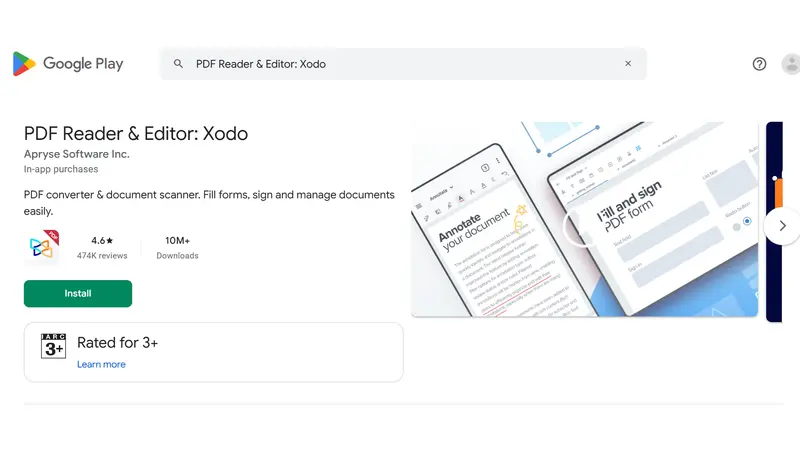
9. PDF Reader & Editor: Xodo
Best for: Students and office workers.
Rating: 4.6 ★ (Google Play)
Xodo is a great PDF convert app for its multiple features, including tools for reading, editing, organizing, and securely storing PDF files. This app has an online storage service like Xodo Drive. It offers 30+ tools, but only to premium users; a free trial is available in some regions.
Key Features
- Converts PDF files into Word, Excel, PowerPoint, JPG, HTML
- Built-in document scanner with image enhancement
- Converts from images and Office files to PDF files
- OCR – converts scanned files into searchable PDFs
- Annotate PDFs: highlight, add notes, comments, drawings
- Smart PDF form filler with auto field detection
- E-signature support for signing documents
- Merge, split, crop, compress, rotate, and redact PDF pages
- Cloud sync for cross-device access
Pros
- Wide format conversion support, including HTML and PDF/A
- Smart form filler with automatic field detection
- Cloud sync keeps files accessible across devices
Cons
- No AI-powered tools despite targeting professionals
- No offline conversion, internet required
- Free vs paid feature breakdown is not clearly communicated to users
- Complex Interface, not beginner-friendly
- No dedicated tax or receipt scanning modes, unlike more advanced competitors
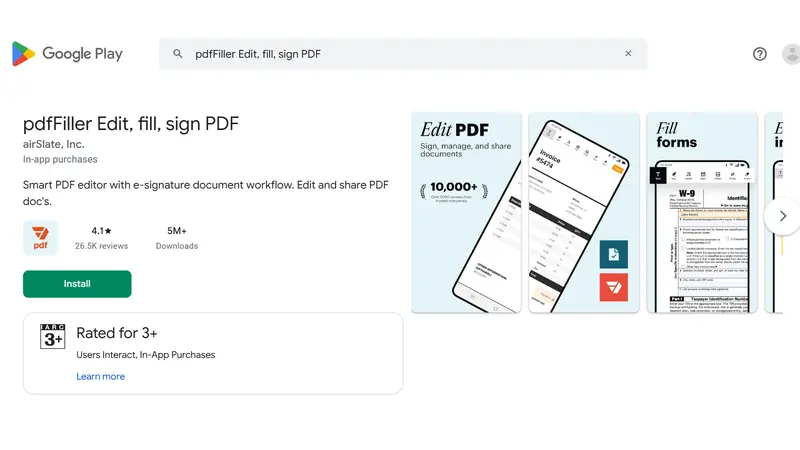
10. pdfFiller Edit, fill, sign PDF
Best for: anyone who wants a PDF converter with a document editor.
Rating: 4.1 ★ (Google Play)
pdfFiller is a great choice for users who want more than a PDF conversion. This app offers a combination of features like PDF editing, document creation, form filling, e-signature, and file conversion. It also provides secure cloud storage and offers a 30-day free trial, allowing users to explore its premium features before committing to a subscription.
Key Features:
- Edit, fill, sign, and convert PDF documents
- Convert from JPG, photos, and files to PDF
- Merge, split, and rearrange PDF pages
- e-signature with multi-recipient support
- Cloud storage integration
- Data encryption and password protection
Pros:
- Large fillable forms library, useful for legal and tax documents
- Multi-recipient e-signature with tracking
- Connects to popular cloud storage platforms
- Offline editing with certain tools
Cons:
- The free plan is only available for new accounts for 30 trial period
- Cannot export edited documents without registering for an account
- No OCR or document scanning feature mentioned
- Requires account registration just to use basic features
- No batch conversion support
- The interface is complex for users who need simple, everyday PDF conversion
Best PDF Converter Apps in 2026: Comparison Table
| App | Rating | Offline | OCR | Free Tools |
|---|---|---|---|---|
| PDF Converter: Scanner & Maker | 4.8 | Partial | Yes | Yes |
| Image to PDF – PDF Maker | 4.8 | Yes | No | Yes |
| PDF Converter | 4.6 | Partial | No | Yes |
| PDFelement – PDF Editor & Reader | 4.4 | No | Yes | Limited |
| PDF Reader: Editor, Converter | 4.5 | No | Yes | Limited |
| CS PDF Reader – PDF Editor | 4.6 | No | Yes | Limited |
| Adobe Acrobat Reader: Edit PDF | 4.6 | No | Yes | Limited |
| iLovePDF: PDF Editor & Scanner | 4.5 | No | Yes | Limited |
| PDF Reader & Editor: Xodo | 4.5 | No | Yes | Limited |
| pdfFiller Edit, Fill, Sign PDF | 4.1 | Partial | No | 30 free trial |
Conclusion
Choosing the right PDF converter app depends on your needs. Some people need a simple PDF converter; on the other hand, some people need advanced features like OCR, PDF editing, file compression, document scanning, and e-signatures.
For anyone who needs a reliable, all-in-one PDF solution that offers both online and offline features, PDF Converter: Scanner & Maker is the best choice in 2026. It provides more than 20 free tools, covering everything a PDF convert app should have. Whether you are a student or a professional user, this app offers a simple, secure, and efficient workflow for all your PDF tasks.
Frequently Asked Questions
What is the best PDF converter app in 2026?
The best PDF converter app is PDF Converter: Scanner & Maker with 21 plus free tools.
Are PDF converter apps free to use?
Many PDF converter apps offer free versions with basic features. However, advanced tools such as OCR, batch conversion, unlimited file processing, and premium cloud storage require a paid subscription.
Can I convert PDF files offline?
Yes. Certain conversions, like IMG to PDF or from PDF to JPG, can be done offline.
Can PDF converter apps convert scanned documents?
Yes. Many converter apps include OCR (Optical Character Recognition) technology that extracts text from scanned documents and images.
Is it safe to use online PDF converter apps?
Most of the PDF converter apps use encryption and automatically delete uploaded files after a certain period. However, for sensitive documents, offline converters are generally the safer option.
What file formats can PDF converter apps support?
All-in-one PDF converter apps generally support a wide range of file formats, like PDF and Word, Excel, PowerPoint, JPG, PNG, TXT, HTML, and other commonly used file formats.
What should I look for in a PDF converter app?
Key features to look for in a PDF converter app are conversion accuracy, OCR support, security measures, batch processing, editing tools, and transparent pricing.
Can I convert PDF files without losing quality?
Yes. Updated PDF converter apps designed with high-quality conversion technology preserve document quality, formatting, images, and text during conversion.