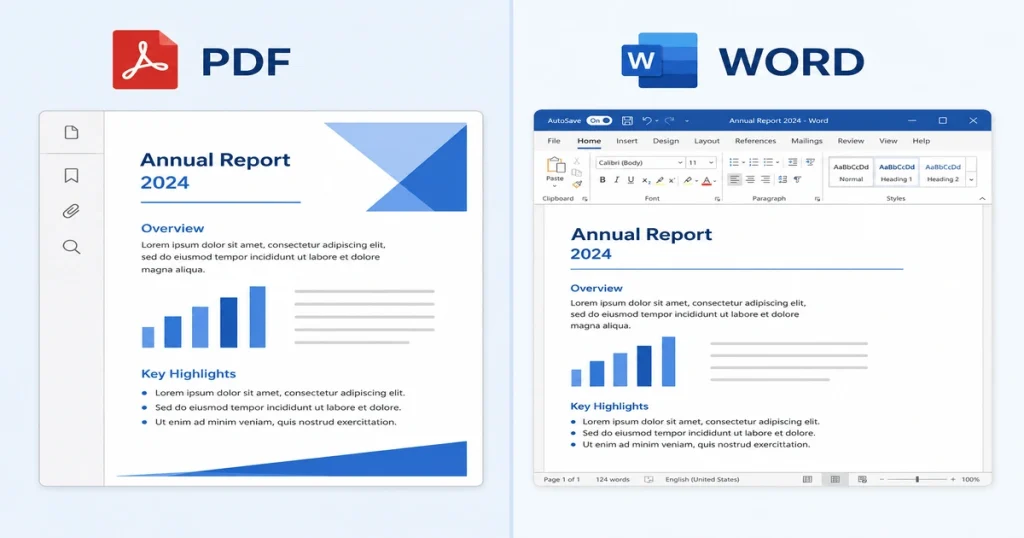
Every time you finish a document, the same question pops up: PDF or Word? It sounds simple. But choosing the wrong format can break your layout, get your resume rejected, or make editing a nightmare later. Here is the short answer: draft in Word, share in PDF. But the full picture is more complex. This guide breaks it all down.
Key Takeaways
- PDF preserves your layout on every device. Word lets you edit and collaborate freely.
- Use Word for drafting. Use PDF for sharing.
- In 2026, modern ATS systems read text-based PDFs just as well as Word files.
- PDF offers stronger security. Word offers better collaboration tools.
- The smartest workflow is both. Draft in Word, export to PDF when done.
PDF vs Word: Quick Comparison
| Feature | Word | |
|---|---|---|
| Formatting consistency | Always the same | Can shift |
| Easy to edit | Limited | Yes |
| Security | Strong | Basic |
| Best for | Sharing | Drafting or editing |
What Is a PDF?
PDF stands for Portable Document Format. Adobe created it in the early 1990s to solve one specific problem: documents looked different on different computers. Fonts would change, tables would collapse, and spacing would go off.
PDF fixed that by locking everything in place. Open a PDF on a Windows laptop, an iPhone, or a Linux machine and it looks exactly the same. Fonts are embedded. Margins never shift. Images stay where you put them. Page breaks are fixed.
That stability is the whole point.
What Is a Word Document?
Word (.doc or .docx) is Microsoft’s format. It was built for one thing: editing. You can change text, move images, reformat paragraphs, and collaborate in real time. Word uses a flow-based model. Content shifts and adjusts as you type. That flexibility is great while you are working on a document.
But it becomes a problem when you share it. Open the same Word file in two different versions of Microsoft Office and things can go sideways. Fonts substitute, spacing moves, tables reflow. If you have ever sent a perfectly formatted document and heard “it looks weird on my end,” that is exactly why.
PDF vs Word: The Key Differences
Both formats look similar on the surface. But under the hood, they work very differently. Here is where they actually differ.
1. Formatting and Layout
PDF locks your layout using a coordinate-based system. Every element sits at a specific position on the page. Nothing moves unless you edit it with special tools.
Word is flexible by design. Text shifts when you add or delete content. Headings follow style rules. That is useful when editing. But it also means formatting can break when the file travels to another device or software version.
2. Editability
Word is easy to edit with almost any word processor. Microsoft Word, Google Docs, LibreOffice, WPS Office, they all handle .docx files. Making changes is fast and straightforward.
PDF editing is more restricted. You need Adobe Acrobat or a dedicated online editor. And even then, editing inside a PDF can be clunky because of how the format stores content. For documents that are still being worked on, Word is the right tool.
3. Printing
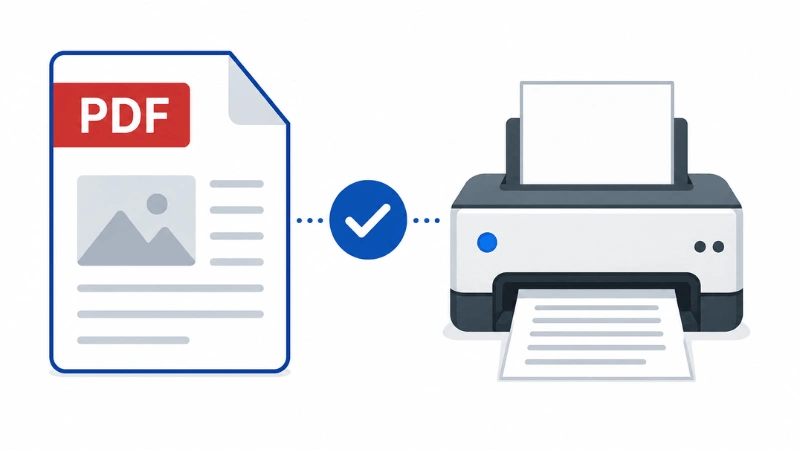
If you are printing a document, PDF is the safer choice. What you see on screen is exactly what comes out on paper. Fonts, margins, and spacing stay locked. It does not matter whether you are printing from a Mac, Windows, or a shared office printer.
Word can produce inconsistent results. Page breaks may shift. Margins can change depending on the printer settings. You may need to adjust the document before every print job. For anything that needs to look right on paper, export to PDF first.
4. Security
PDF has serious security features. You can add password protection, encrypt the file, restrict editing or printing, add digital signatures, and even set the document to expire. Some platforms also log audit trails showing who opened, viewed, or signed a document.
On the other hand, Word has basic password protection. But it is generally weaker and easier to bypass. For sensitive documents, that is a risk not worth taking.
5. Long-Term Storage and Archiving
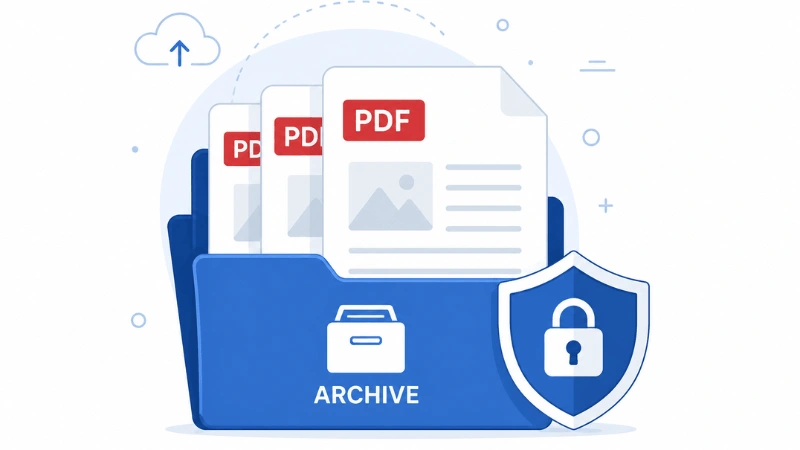
For long-term storage, PDF is the better format. PDF has an official archival standard called PDF/A. It was created specifically for this purpose. Documents saved in PDF/A remain readable and consistent even as software and operating systems change over time.
Word does not have a comparable standard. As Microsoft Office versions evolve, older .doc and .docx files can sometimes display differently or lose formatting. For records, legal papers, or any document you need to keep for years, PDF is the safer option.
6. Compatibility
You can open a PDF on almost any device without special software. Browsers, mobile apps, and built-in viewers all handle PDFs fine. Word files need compatible software. On mobile, apps often have version limitations or missing features. If the recipient does not have the right setup, your document may not display correctly.
7. Security for Signatures
PDF is the trusted format for e-signatures. It is legally valid under the ESIGN Act and similar regulations worldwide. Many platforms support audit trails specifically for PDFs. Word can handle basic signing workflows, but it is not the standard for legal documents. When legal validity matters, PDF is the only safe choice.
When to Use PDF
Use PDF when the document is final and ready to be seen by others.
- Resumes and CVs
- Contracts and legal agreements
- Official reports
- Government submissions
- Invoices and proposals
- Brochures and marketing materials
- Anything you are sending by email or sharing publicly
Universities, government offices, and most institutions prefer PDF because it guarantees the document looks the same as what was submitted. No accidental changes can happen after you send it.
When to Use Word
Use Word when the document is still being worked on.
- Writing first drafts
- Team collaboration with tracked changes and comments
- Academic submissions where instructors leave feedback
- Any document that still needs revision rounds
Word is also the right choice when someone explicitly asks for an editable version. Recruiters at staffing agencies sometimes want .docx files so they can reformat your resume before passing it along.
PDF vs Word for Resumes in 2026
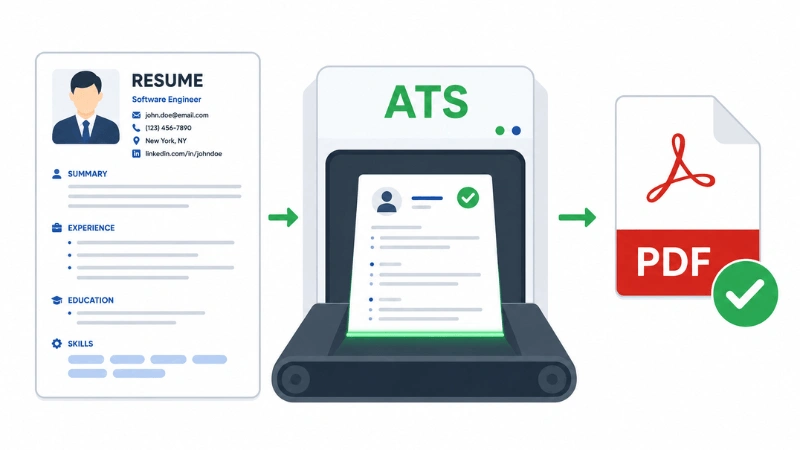
This is worth a dedicated section because a lot of outdated advice is still floating around. The old rule was: always use Word for ATS (Applicant Tracking Systems) because they could not read PDFs. That was true in 2010. It is not true now.
Modern ATS platforms like Greenhouse, Lever, Workday, iCIMS, and Taleo can all read text-based PDFs without any issues. In fact, PDFs now match or even beat Word files in ATS accuracy.
The real distinction is not PDF vs Word. It is text PDF vs image PDF. A text PDF (exported from Word, Google Docs, or a resume builder) is fully readable by ATS. An image PDF (scanned from a printed page) cannot be parsed at all. The system sees a picture, not text.
Nearly half of resumes submitted in Word format experience some formatting errors after upload. PDF removes that variable entirely. The formatting you designed is what the hiring manager sees. In 2026, keep a master .docx file for editing. Export to PDF before every submission. Only send Word if the job posting specifically asks for it.
The Hybrid Workflow: Best of Both
Most organizations do not choose one format exclusively. They use both at different stages. Here is how it typically works in professional settings:
- Create and draft in Word
- Collaborate and revise in Word (tracked changes, comments)
- Export the final version to PDF
- Sign and distribute the PDF
This workflow makes sense because each format does what it is best at. Word handles the messy work of creation. PDF handles the clean work of distribution. For your own documents, the same logic applies. Keep your files in Word while they are evolving. Export to PDF when they are done.
Which Format Should You Use? A Quick Decision Guide
Not sure which format fits your situation? Use this table as a quick reference. When in doubt, the rule is simple. Draft in Word. Share in PDF.
| Document Stage | Recommended Format |
|---|---|
| Writing a first draft | Word |
| Collaborating with a team | Word |
| Getting feedback or comments | Word |
| Submitting a resume | |
| Sending a contract | |
| Final distribution | |
| Printing | |
| Long-term archiving |
How to Convert Between PDF and Word
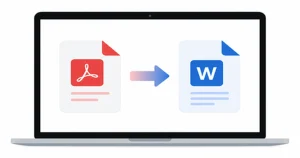
Switching between PDF and Word is simple. Word to PDF takes just a few clicks. PDF to Word needs a little more care. And if you want to skip the hassle, PDF Conveter gets it done right from your browser, no software needed.
Word to PDF
In Microsoft Word, go to File > Save As > PDF. This has been available since Word 2007. Google Docs also exports to PDF directly. The result is a text-based PDF that any ATS or reader can handle.
PDF to Word
This is trickier. You can use “PDFConverter” or a free online converter. The conversion is not always perfect. Formatting may shift and some elements may need adjusting after conversion.
One Important Warning
Do not convert scanned PDFs. Scanning a printed page creates an image PDF, not a text document. Converting it to Word often produces garbled or unreadable output.
Common Mistakes to Avoid
Small formatting mistakes can cost you a job or a deal. Here are the most common ones people make and how to avoid them.
- Submitting an image-based PDF. ATS cannot read it. Game over.
- Password-protecting your resume. Recruiters will skip it. Do not do it.
- Complex layouts. Tables and columns confuse ATS. Keep it clean.
- Wrong format. Job posting says .docx? Send .docx. Simple.
- Sending both formats. Pick one. Sending both looks uncertain.
Most of these mistakes take seconds to fix. Check your file before you hit send.
Frequently Asked Questions
Is PDF better than Word for a resume in 2026?
Yes, in most cases. PDF preserves your formatting across all devices and modern ATS systems parse text-based PDFs reliably. Only use Word if the job posting specifically asks for it.
Can ATS systems read PDF files in 2026?
Yes. Major platforms like Greenhouse, Lever, Workday, and iCIMS all read text-based PDFs accurately. The only PDFs that cause problems are image-based PDFs created by scanning a printed page.
Does converting between PDF and Word affect formatting?
Sometimes. Simple documents usually convert cleanly. Complex layouts with tables, columns, or images may shift after conversion. Always review the document after converting before you send it.
Should I send both PDF and Word versions?
No, unless both were requested. Sending both looks uncertain and creates confusion about which version to use.
Which format is more secure?
PDF. It supports password protection, encryption, editing restrictions, digital signatures, and audit trails. Word’s protection features are more basic.
Which format is better for collaboration?
Word. Real-time editing, tracked changes, and comments are all built into Word and work seamlessly across most platforms.
Final Verdict
PDF and Word are not competing formats. They serve different stages of a document’s life. Use Word when you are creating, drafting, or collaborating. Use PDF when you are done and ready to share.
For resumes, contracts, reports, and anything going out to the world, PDF is the safer and more professional choice in 2026. Keep your source files in Word so editing stays easy. Export to PDF when it is time to send. That one habit will save you from broken layouts and formatting headaches.