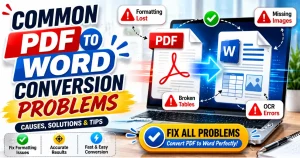

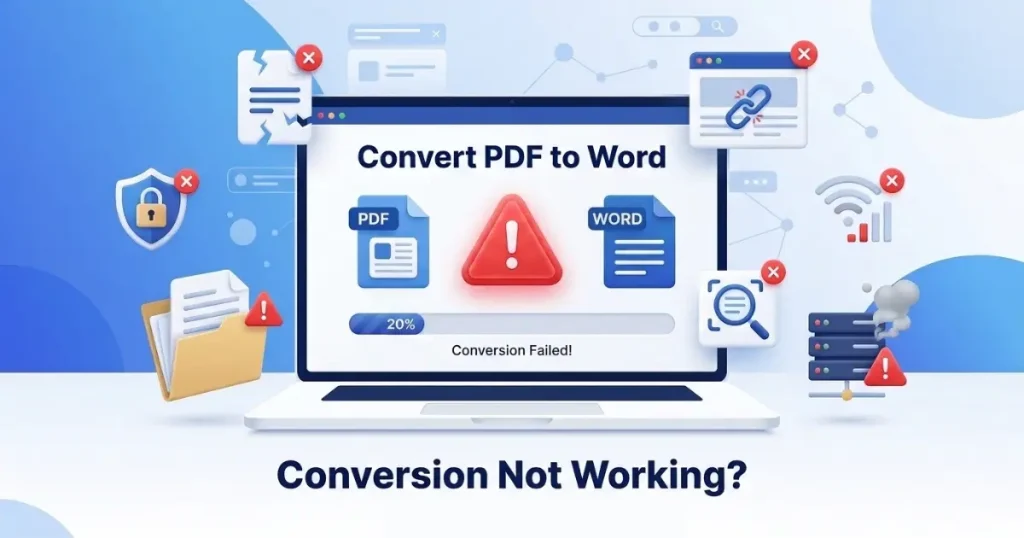
Converting a static PDF into editable Word is a super convenient way to make changes or fix complex issues in a PDF. However, PDF to Word conversion does not always work smoothly; it can fail for several reasons: a damaged file, password protection, image-based documents that need OCR, browser problems, or even it can be server error.
In this article, you will learn why conversions fail, how to identify the real cause, and how to fix them. Moreover, you will know how to prevent similar issues in the future, so you can save time and get a perfect PDF to Word converted document.
Common Reasons Why PDF to Word Conversion Fails
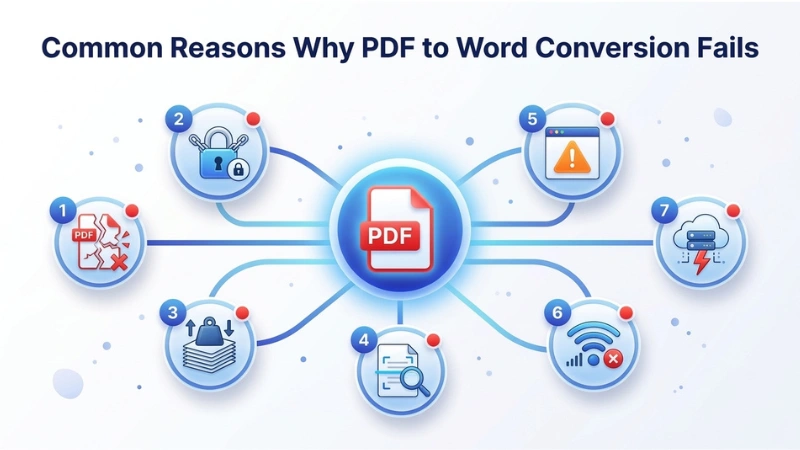
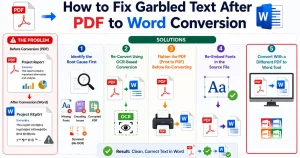
Instead of trying random fixes, first understand the actual problems that are causing conversion failures. Because when you find the real reasons, it becomes easier to solve that problem. Mostly, conversion fails due to a damaged source file, security locks on the PDF, a file is too large for the converter tool, a scanned page with no real text underneath it, a weak internet connection, or a server error.
PDF File Is Corrupted or Damaged
One of the most common reasons why conversion fails is a damaged PDF or a corrupted file.
Even if the PDF looks normal when you open but when you try to convert it, the conversion tool reads the internal structures of the file and shows it’s actually a damaged PDF. When that happens, the converter stops working because the important data inside the document is missing or damaged, and ultimately gives you an incomplete Word file.
PDF Is Password-Protected or Has Security Restrictions
If your PDF has security protection that requires a password just to open the file, and permission restrictions that block copying, editing, or printing even after it’s opened. Many converters can’t process this type of file without being unlocked first, since the encryption or restriction layer prevents the tool from reading the text and layout data it needs.
Your File Size Is Too Large
Free and browser-based converters usually have a file size limit, and conversion can fail if your PDF is too large. If your PDF contains high-resolution images, embedded fonts, or has dozens of pages can easily blow past that limit, causing the upload to slow, time out, or get rejected.
Scanned PDFs Without OCR Aren’t Converting Properly
If a PDF was created by scanning a paper document, it isn’t actually made of text; it’s a picture of text. If you use a converter tool that does not support Optical Character Recognition (OCR) to detect and convert those images into real, editable characters, the converter will fail to extract text to make it a Word document.
Software or Browser Compatibility Issues
Sometimes, PDF conversion fails even when your document is perfectly fine. The real cause may be a browser problem, outdated software, or a temporary technical issue. Some converters rely on modern browser features to handle uploads and downloads. Browser extensions such as Ad blockers, privacy tools, or download managers occasionally interrupt file uploads or prevent the converter from completing the conversion
Internet Connection or Server-Side Errors
If you’re using an online PDF converter tool, a slow or unstable internet connection can cause the conversion to fail. Every file must be uploaded, processed on a server, and then downloaded as a Word document, so any interruption in the process can lead to conversion failure. Moreover, temporary server overloads or scheduled maintenance can also slow down the conversion or cause it to fail.
Conflicting Software (e.g., Word Add-ins, Antivirus, Other Apps)
If you’re using desktop software rather than a browser-based tool, third-party Word add-ins, antivirus programs, or other background applications can interfere with how files are read, written, or saved. Antivirus software, in particular, sometimes flags newly converted files or blocks a converter from writing to a folder, which can make it look like the conversion itself failed.
How to Fix PDF to Word Conversion Error
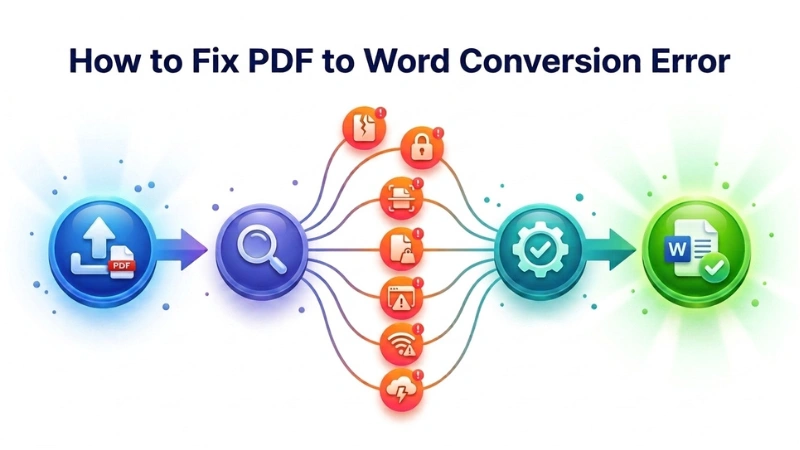
Now that you know the most common reasons why your PDF to Word conversion isn’t working, it’s much easier to find the right solution. There’s no need to try every possible fix. Instead, identify the issue that matches your situation and follow the steps below to solve the problem.
- Corrupted PDF: Try opening it in a different PDF reader to confirm the damage. If it opens elsewhere, re-save or re-export a fresh copy from the source. If it won’t open anywhere, request a new copy from whoever sent it to you.
- Password-protected file: Enter the correct password when prompted, or use a PDF unlock feature to remove restrictions if you have permission to do so. Only unlock files you have the authority to edit.
- File is too large: Compress the PDF first to shrink image sizes and remove unnecessary metadata, then try converting the smaller version of that file.
- Scanned PDF: Use a converter with built-in OCR so it can recognize and extract the actual text instead of treating the page as an image.
- Browser or software glitch: Update your browser to the latest version, temporarily disable extensions, or try a different browser altogether.
- Internet Connection trouble: Switch to a stable Wi-Fi or wired connection, and try again after a few minutes in case the server was temporarily down.
- Another program interfering: Temporarily disable antivirus scanning for the specific file or folder, and close other Word-related add-ins before converting
Step-by-Step: General Troubleshooting Checklist
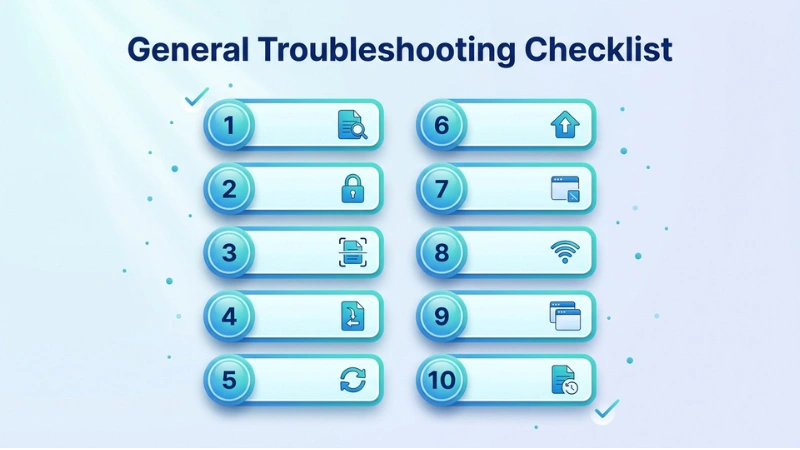
If you’re still not sure what’s causing the actual problem, follow this checklist before giving up on the conversion. Working through these steps in order can help you identify the issue quickly and avoid unnecessary frustration.
- Open the PDF to make sure it isn’t damaged or incomplete.
- Check whether the document is password-protected or has editing restrictions.
- Determine if the PDF is scanned or text-based. If it’s image-based, use OCR before converting it.
- Review the file size. Compress or split large PDFs if needed.
- Refresh your browser and clear cached files if you’re using an online converter.
- Update your browser, PDF software, and Microsoft Word to the latest versions.
- Close unnecessary background applications that may be locking the file.
- Test your internet connection and retry the upload if it appears unstable.
- Try converting the PDF using another browser or device to rule out local software issues.
- If the problem persists, upload a fresh copy of the PDF or recreate it from the original source file whenever possible.
Following this checklist solves many of the most common conversion issues without requiring advanced technical knowledge. It also helps you narrow down whether the problem lies with the PDF itself, your device, or the conversion tool you’re using.
Best Tools to Convert PDF to Word Without Errors
Converting a PDF to Word should preserve your document’s formatting, images, tables, and fonts. However, not all PDF converters deliver accurate results. In this guide, we will explore the best tools for converting PDFs to Word without errors. It helps you to choose the right solution for fast, reliable, and high-quality document conversion.
PDF Conveter
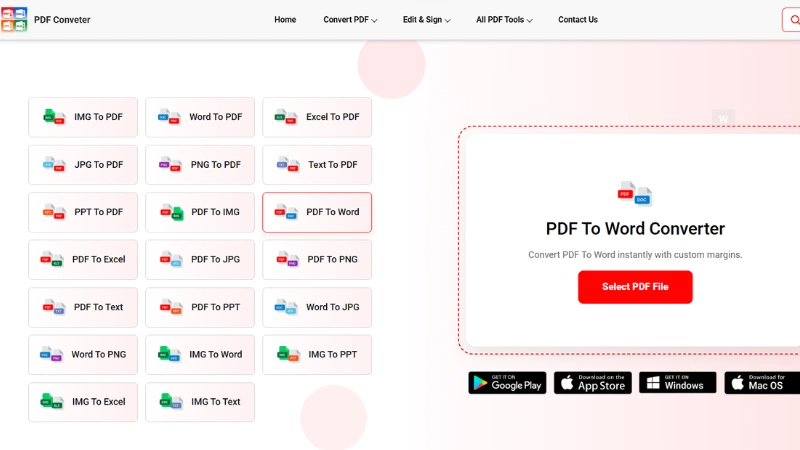
PDF Conveter is the best tool because it’s browser-based- no need to download any software, and it provides an all-in-one PDF solution. You can use it for multi-purpose tasks like compressing large files to reduce their size or for other conversions.
Key features:
- Word to PDF: convert your Word file to PDF.
- Excel to PDF: convert Excel documents to PDF to preserve format.
- PDF to PPT: turn your PDF into a PowerPoint presentation.
- PDF to PNG: convert PDF into PNG image format.
- Sign PDF: You can sign a PDF document without a printer.
Moreover, anyone can use offline conversion. It’s also available as an app on Google Play, the Apple App Store, Windows, and macOS, and every file is processed over an encrypted connection and automatically deleted after conversion is done.
How PDF Conveter Handles These Errors Better
Many PDF conversion problems aren’t caused by the document alone. They’re often the result of using a converter that doesn’t process files efficiently. A well-designed conversion tool can resolve many of the common issues discussed earlier.
Here are a few reasons why PDF Conveter provides a smoother conversion experience:
- Preserve document formatting as accurately as possible, helping maintain headings, paragraphs, tables, and images.
- Supports OCR technology, allowing scanned PDFs to become editable Word documents instead of image-only files.
- Works directly in your browser, so there’s no need to install any software.
- Processes documents quickly, reducing waiting time for most standard PDF files.
- Simple interface: that makes uploading, converting, and downloading straightforward.
- Compatible: it works smoothly on desktops, laptops, tablets, and smartphones, making it convenient to use wherever you are.
- Designed for everyday document conversions: whether you’re working on school assignments, office files, contracts, or personal paperwork.
How to Prevent Future Conversion Failures
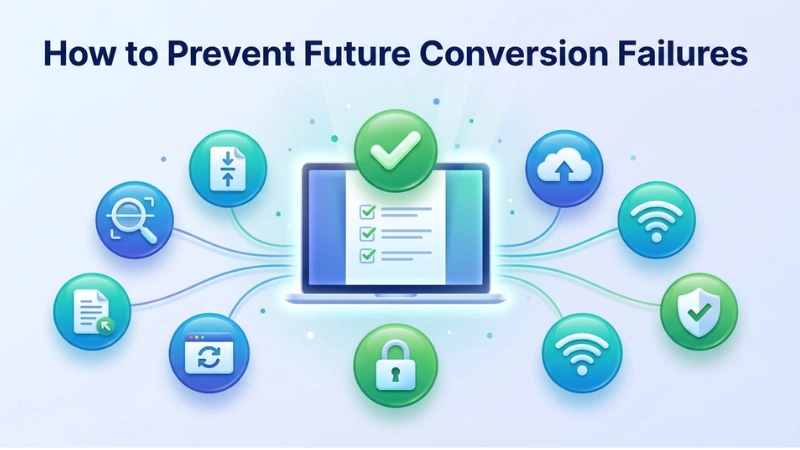
You can follow these tips to avoid future conversion failures, save your time, and get perfect conversions.
- Keep a habit of checking that your PDF opens cleanly before you try to convert it.
- Avoid saving overly large, image-heavy PDFs when a compressed version will do the job.
- Remove passwords or restrictions ahead of time if you know you’ll need to edit the file later.
- Run OCR proactively on any scanned documents you expect to reuse.
- Keep your browser updated, since most reliable browser-based converters are built around current web standards.
- Choose a converter that’s transparent about its file size limits and supported formats, so you’re not caught off guard mid-task.
Conclusion
Most PDF-to-Word conversion problems can be fixed in just a few minutes once you identify the real cause. Start by checking whether the PDF is damaged, password-protected, scanned, or simply too large. Then apply the appropriate solution. If you’re looking for a converter that supports OCR, preserves formatting, and works directly in your browser, try PDF Conveter to make the process faster and easier.
Frequently Asked Questions
Why won’t my PDF convert to Word?
The most common causes are a corrupted file, password protection, a file size that exceeds the converter’s limit, or a scanned PDF without OCR support. Checking each of these in order usually reveals the culprit quickly.
How do I fix PDF to Word conversion errors for free?
Start by confirming the PDF opens normally, then try our free PDF conveter a browser-based tool with OCR support, which handles scanned files, larger documents, and common browser issues without requiring paid software.
Why does my converted Word file look broken?
This usually happens when the original PDF was scanned and lacked OCR, when complex formatting like tables or columns didn’t translate cleanly, or when the converter struggled with embedded fonts and images.
Is there a file size limit for PDF to Word conversion?
Most free tools cap files somewhere between 10MB and 50MB. If your file is larger, compressing it first is the easiest way to get it under the limit without losing important content.
Can I convert a scanned PDF into an editable Word document?
Yes. However, the converter must support OCR technology. OCR recognises text inside scanned images and turns it into editable content.