
There are multiple factors to fix garbled text after PDF to Word conversion, such as using a reliable PDF converter, enabling OCR, checking for missing fonts, selecting the correct document language, and re-downloading the original PDF. Before fixing the issues, we should know what the garbled text is.
Garbled text may come when converting a PDF to Word editable document. The result contains unreadable characters, broken words, or random symbols instead of the original text. This problem is known as garbled text. It usually occurs when the converter cannot accurately interpret the document’s fonts, encoding, or text structure.
Fortunately, most cases can be resolved once you identify the underlying cause. Below are the most common reasons why PDF to Word conversion produces garbled text, what each one means, and how we can fix garbled text after PDF to Word conversion.
Why PDF to Word Conversion Produces Garbled Text
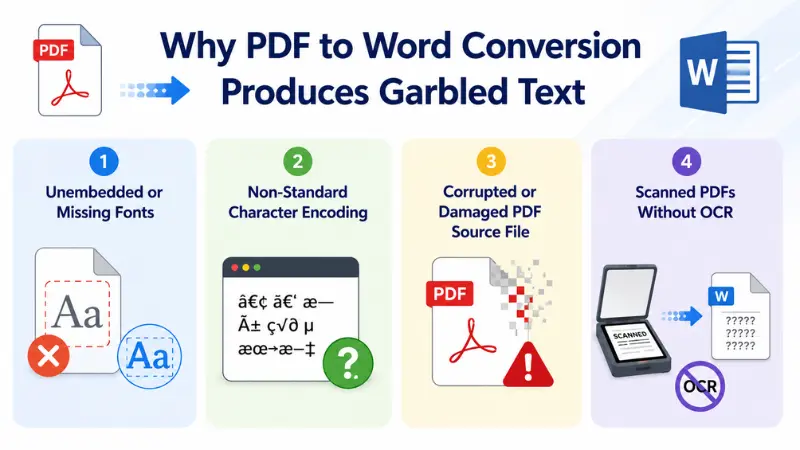
A PDF preserves the visual appearance of a document, while a Word file stores editable text and formatting differently. During conversion, the software must extract text, map fonts, and rebuild the document structure.
If any of these elements cannot be interpreted correctly, the converted file may display unreadable text, incorrect symbols, or missing characters. However, several factors can lead to this issue, ranging from missing fonts to scanned documents that require OCR.
1. Unembedded or Missing Fonts
Fonts determine how characters appear in a document. If the original PDF uses fonts that are not embedded in the file, the converter must replace them with available fonts on your computer. This substitution can change character mapping, causing letters, symbols, or punctuation to appear incorrectly.
This issue is especially common in PDFs created with custom fonts or older publishing software. To reduce font-related problems, use PDFs with embedded fonts whenever possible or convert the document using software. Because it preserves font information during the conversion process.
2. Non-Standard Character Encoding
Character encoding defines how letters, numbers, and symbols are stored inside a document. Some PDFs use older or non-standard encoding methods that modern conversion tools cannot fully interpret.
When the converter misreads the encoding, text may appear as question marks, empty boxes, random symbols, or unreadable characters instead of the original content. Using a converter with full Unicode support helps maintain accurate character recognition during conversion.
3. Damaged PDF Source File
A damaged PDF may still open normally but contain structural errors that interfere with the conversion process. If important document data is missing or corrupted, the converter may be unable to reconstruct the original text correctly.
File corruption can result from incomplete downloads, interrupted transfers, storage errors, or problems during PDF creation. Before converting the document, verify that the original PDF opens correctly in a reliable PDF reader. If the file appears damaged, repairing or replacing it often resolves garbled text issues.
4. Scanned PDFs Without OCR
Not every PDF contains actual text. Many documents are scanned images saved in PDF format. Since image-based PDFs do not contain editable characters, a standard converter cannot recognize the text automatically.
Without Optical Character Recognition (OCR), the software may generate unreadable characters or fail to extract text altogether.
If your PDF was created by scanning a paper document, choose a converter that includes OCR technology. OCR analyzes the image, recognizes the text, and converts it into an editable Word document with much higher accuracy.
How to Fix Garbled Text in a Converted Word Document
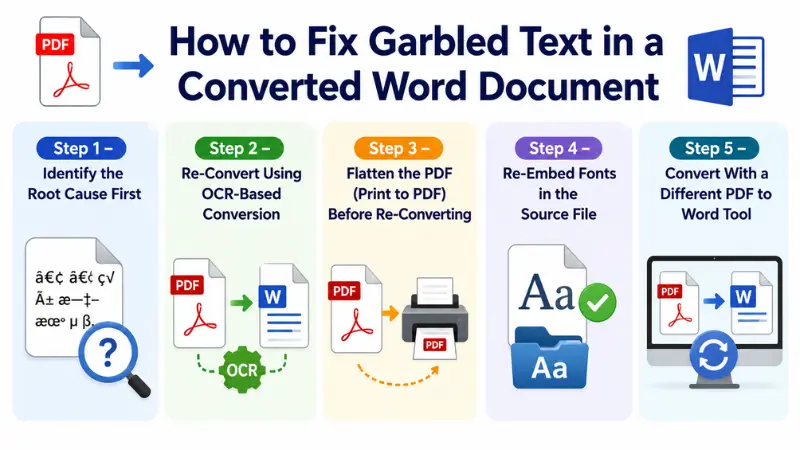
Garbled text is often fixable without recreating the document from scratch. The right solution depends on what caused the problem during conversion. Follow the steps below to identify the issue and improve the quality of your converted Word file.
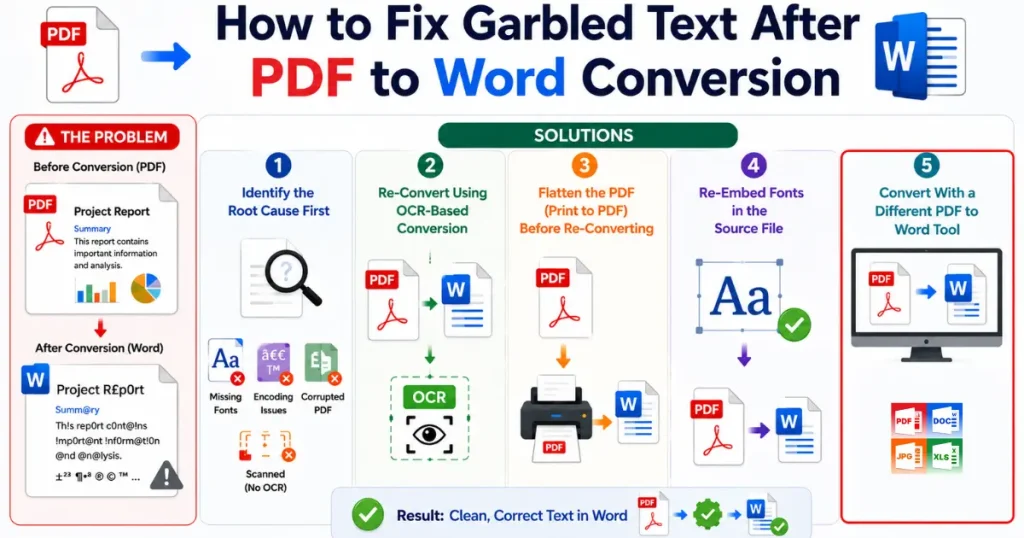
Step 1 – Identify the Root Cause First
Before converting the PDF again, determine why the text became unreadable. Different causes require different solutions. So, identifying the problem saves time and helps you choose the right approach.
Check whether:
- The PDF contains selectable text or scanned images.
- Special characters or custom fonts are used.
- The file appears damaged or incomplete.
- Only certain pages contain garbled text.
- The problem occurs with one file or multiple PDFs.
Once you know the cause, you can apply a more effective fix instead of repeating the same conversion process.
Step 2 – Re-Convert Using OCR-Based Conversion
If your PDF is a scanned document, a standard converter may not recognize the text correctly. Instead, use a converter with Optical Character Recognition (OCR) to detect and extract text from images.
For the best results:
- Enable OCR before starting the conversion.
- Select the correct document language.
- Use a clear, high-resolution scan whenever possible.
- Review the OCR output after conversion.
OCR significantly improves text recognition and reduces unreadable characters in scanned PDFs.
Step 3 – Flatten the PDF (Print to PDF) Before Re-Converting
Some PDFs contain complex layers, interactive elements, or unsupported objects that can interfere with conversion. Printing the document to a new PDF creates a simplified version with a cleaner structure.
This method can help:
- Remove hidden layers.
- Eliminate unsupported objects.
- Simplify complex formatting.
- Improve compatibility with conversion tools.
After creating the flattened PDF, convert the new file instead of the original one.
Step 4 – Re-Embed Fonts in the Source File
If missing fonts caused the problem, regenerate the PDF with embedded fonts before converting it to Word. Embedded fonts allow the converter to access the original character information instead of replacing it with substitute fonts. When creating the PDF:
- Enable the Embed Fonts option.
- Save the document using the latest PDF settings.
- Verify that the fonts are embedded before conversion.
Step 5 – Convert With a Different PDF to Word Tool
Not all PDF converters process documents the same way. Some tools handle fonts, OCR, layouts, and character encoding more accurately than others. If the converted document still contains garbled text:
- Try a converter with OCR support.
- Choose software that preserves fonts and formatting.
- Compare the output from different conversion tools.
- Keep the original PDF unchanged until you’re satisfied with the results.
Using a more capable PDF converter often resolves issues that another tool cannot handle.
What to Do If Garbled Text Still Won’t Fix
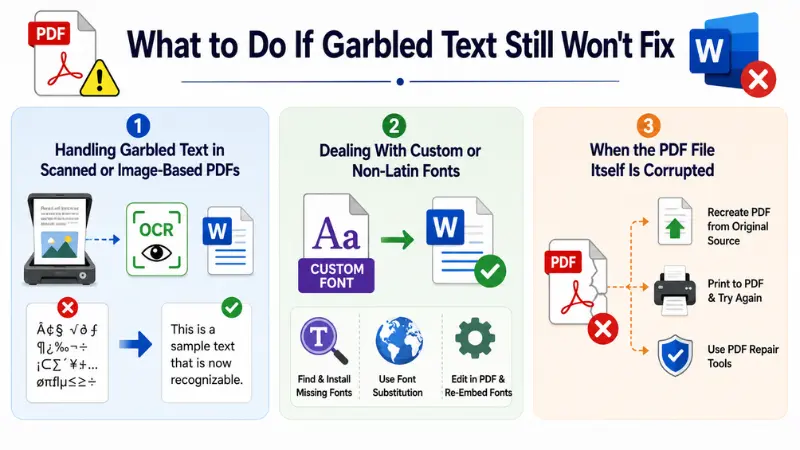
If garbled text remains after trying standard fixes, the problem may be related to the document itself rather than the conversion process. Scanned PDFs, unsupported fonts, and damaged files often require a different approach. The sections below explain how to handle these situations.
Handling Garbled Text in Scanned or Image-Based PDFs
Scanned PDFs do not contain editable text. Instead, each page is stored as an image. Without OCR, the converter cannot recognize the characters accurately, which may result in unreadable or missing text. To improve the conversion:
- Use a PDF converter with built-in OCR.
- Select the correct language before running OCR.
- Convert from a high-resolution scan whenever possible.
- Check the OCR output for recognition errors before saving the document.
If the original scan is blurry or poorly aligned, rescanning the document at a higher quality often produces better results.
Dealing With Custom or Non-Latin Fonts
Documents that use custom fonts or non-Latin scripts may not convert correctly if the required fonts are unavailable or unsupported. Characters can appear as symbols, empty boxes, or incorrect letters after conversion. To reduce font-related issues:
- Use the original fonts when they are available.
- Recreate the PDF with embedded fonts if possible.
- Choose a converter that supports Unicode and multilingual text.
- Verify that the correct language is selected during conversion.
These steps help preserve character mapping and improve text accuracy.
When the PDF File Itself Is Corrupted
A corrupted PDF may contain damaged data that prevents the converter from reading the document correctly. Even if the file opens, hidden structural errors can affect the conversion output. If you suspect file corruption:
- Download the PDF again from the original source.
- Open the file in another PDF reader to check for display issues.
- Repair the PDF before converting it.
- Request a new copy if the original document cannot be repaired.
Starting with a clean, undamaged PDF gives the converter the best chance of producing an accurate Word document.
Common Mistakes That Cause Garbled Text to Persist
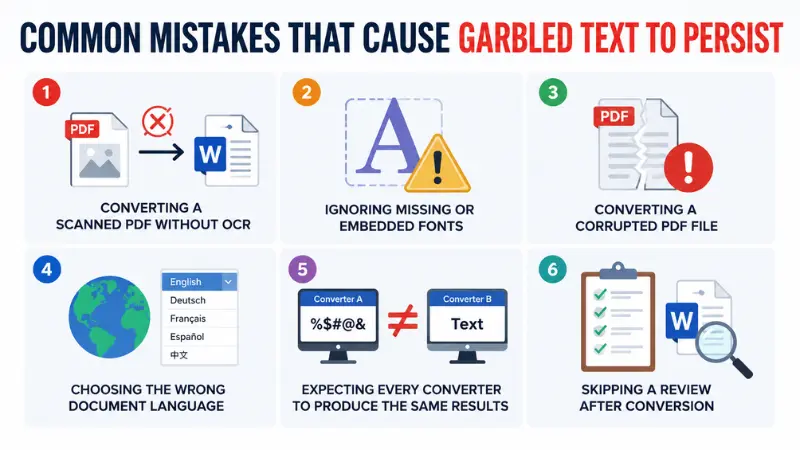
Even after re-converting a PDF, garbled text can remain if the underlying issue is not addressed. Many users repeat the same conversion process without correcting the actual cause, which leads to the same unreadable output. Avoiding the mistakes below can significantly improve conversion accuracy.
Converting a Scanned PDF Without OCR
A standard PDF converter cannot extract text from image-based PDFs. Converting a scanned document without enabling OCR often results in unreadable characters, missing text, or image-only pages.
Best practice: Always use OCR when converting scanned or image-based PDFs.
Using an Outdated PDF Converter
Older conversion tools may not fully support modern PDF standards, Unicode encoding, or newer font formats. This can lead to incorrect character mapping and formatting errors.
Best practice: Use an up-to-date PDF converter that supports current PDF specifications and OCR technology.
Ignoring Missing or Embedded Fonts
If the original PDF uses fonts that are not embedded or available during conversion, the software may substitute them with different fonts. This often changes characters and symbols in the Word document.
Best practice: Whenever possible, convert PDFs with embedded fonts or recreate the PDF with font embedding enabled.
Converting a Corrupted PDF File
A damaged PDF may contain incomplete or broken document data that prevents accurate text extraction. Running the same corrupted file through multiple converters rarely fixes the problem.
Best practice: Verify the PDF is not corrupted before converting. If necessary, repair the file or obtain a clean copy.
Choosing the Wrong Document Language
OCR accuracy depends on the selected language. If the converter processes an English document as another language, character recognition may fail, resulting in garbled text.
Best practice: Select the correct document language before starting OCR, especially for multilingual or non-English files.
Expecting Every Converter to Produce the Same Results
PDF converters use different rendering engines and text recognition methods. A file that fails in one converter may convert correctly in another.
Best practice: If the first conversion produces unreadable text, try another converter with stronger OCR, font handling, and formatting support.
Skipping a Review After Conversion
Many users save the converted Word document without checking the output. Small conversion errors can become larger problems once the document is edited or shared.
Best practice: Review the converted file for missing characters, formatting issues, tables, and special symbols before making further edits
Conclusion
Garbled text means obscure content, misleading font, broken content, blurry font, mismanagement of alphabets, etc. The reader cannot read such content, and no one accepts the document. It is a major issue. Need to fix it, but how to fix the garbled text after conversion? We have shown the best options to fix the problems. In that case, choose the best PDF to Word converter to avoid such issues
Why does my PDF text turn into symbols after converting to Word?
This usually happens when the converter cannot correctly interpret the fonts or character encoding used in the PDF. Missing fonts, unsupported encoding, or scanned documents without OCR are the most common causes.
Can garbled text in a converted PDF be fixed for free?
Yes, in many cases. If the issue is caused by missing OCR, incorrect conversion settings, or a temporary software problem, a free PDF converter with OCR support may resolve it. However, if the original PDF is corrupted or contains unsupported fonts, you may need to repair the file or recreate the PDF before converting it again.
Why is my PDF converting to Word with weird characters instead of text?
Weird characters usually appear when the converter cannot map the original text correctly. This can happen because of custom fonts, unsupported character encoding, damaged PDF files, or image-based PDFs. Identifying the root cause helps determine the most effective solution.
Does OCR fix garbled text from PDF to Word conversion?
OCR can fix garbled text if the PDF is image-based or scanned. It analyzes the text within the images and converts it into editable characters. However, OCR will not solve problems caused by corrupted files, missing fonts, or unsupported character encoding. It is most effective when the scanned document is clear and of high quality.
Why is the text garbled only when I copy-paste from a PDF but fine when I view it?
A PDF viewer displays the document using its internal font information, so the text can appear normal even if the underlying character mapping is incorrect. When you copy and paste, the viewer extracts the actual text data.
How to Fix Garbled Text After PDF to Word Conversion on Windows
Windows users can often resolve garbled text by adjusting the conversion method or using a different PDF tool. Before converting the file again, confirm that the PDF is not damaged and contains selectable text. To improve conversion accuracy:
- Update your PDF converter to the latest version.
- Enable OCR if the PDF is scanned.
- Install any missing fonts used in the document.
- Convert the file using a tool that supports Unicode and embedded fonts.
- Open the converted Word document in the latest version of Microsoft Word.
If the problem persists, try converting the PDF with another trusted converter to determine whether the issue is tool-specific.
How to Fix Garbled Text After PDF to Word Conversion Online
Online PDF converters can quickly resolve garbled text, but the results depend on the quality of the original PDF and the features supported by the conversion tool. For better results:
- Choose an online converter with OCR support.
- Upload a clear, high-quality PDF.
- Select the correct document language before converting.
- Download the converted file and review it before editing.
- If one online tool fails, try another converter that offers better font and text recognition.
If your document contains sensitive information, use a secure online converter or convert the file locally to protect your data.