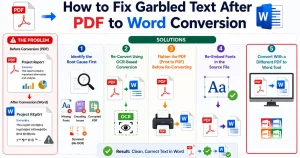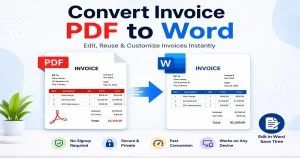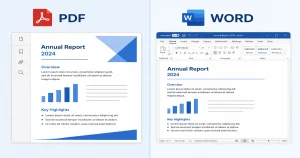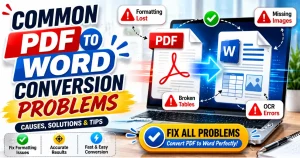

PDF files are one of the most reliable formats for sharing documents because they lock in the format layout, fonts, and images across different devices. Although editing a PDF allows you to make simple changes, such as correcting text or adding comments. It fails in complex edits, when you need to make changes like layout reformatting, changing fonts, or replacing images.
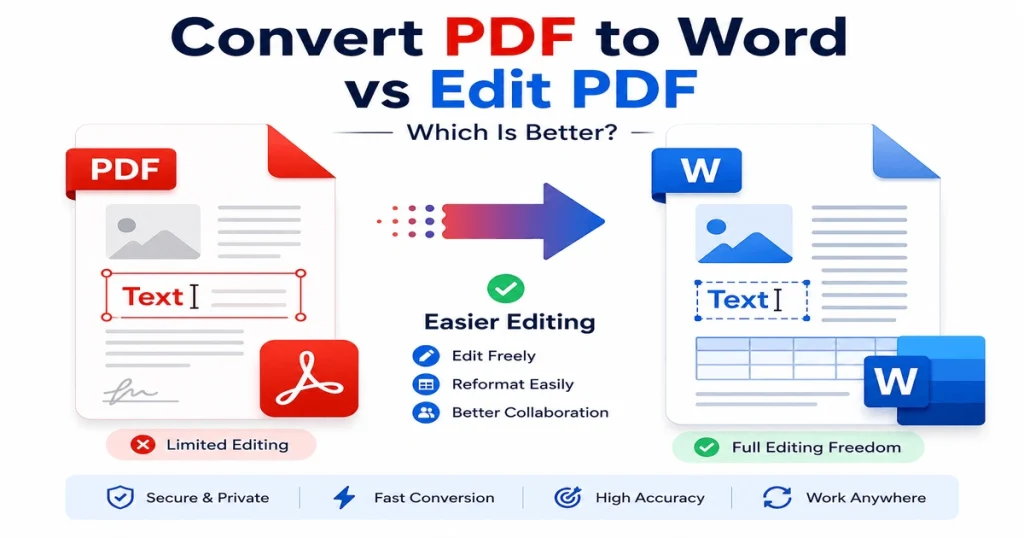
When you need to make changes to a PDF, you have two main options: edit the PDF directly or convert it to Word. While PDF editing works well for minor updates, converting a PDF to Word is often the better choice for extensive text, layout, or content modifications
This is why Convert PDF to Word is best when you need to make more complex changes, reorganize layout, fix scattered typos, and reposition images. Word provides a better editing environment with flexible formatting tools, making it much easier to update content, collaborate with others, and save changes without unnecessary hassle. In this guide, you’ll learn why converting a PDF to Word is often the smarter choice.
Difference Between PDF Editing and PDF to Word Conversion
Although editing a PDF and converting it to Word can both help you to update a document. They work in different ways: PDF editing lets you make changes while keeping the file in PDF format, while PDF to Word conversion turns the document into a fully editable Word file. Understanding the difference will help you choose the right method based on the type of changes you want to make
What is PDF Editing?
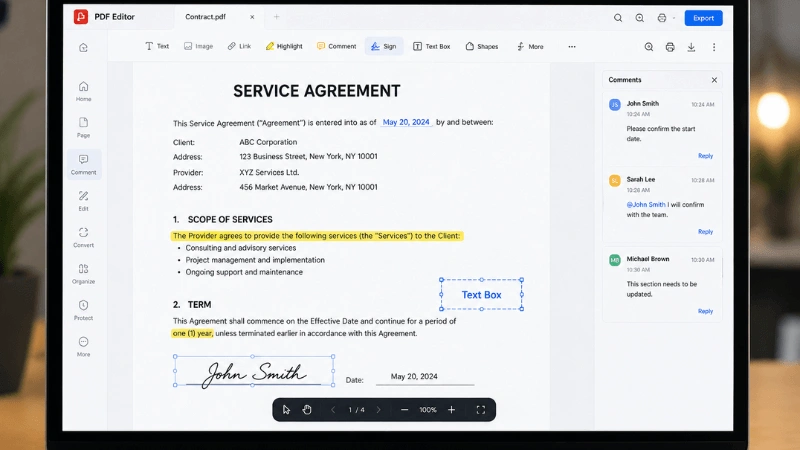
Editing a PDF means making changes directly to the original PDF file without changing its format. By using a PDF editor, you can correct text, highlight important sections, add comments, or insert signatures. These features are useful when you only need to make small updates while keeping the document in PDF format.
However, PDFs are built for sharing rather than editing. Their fixed layout makes complex changes difficult and sometimes impossible. Another problem is that many PDF editor tools require a paid subscription to access advanced editing features.
What is PDF to Word Conversion?
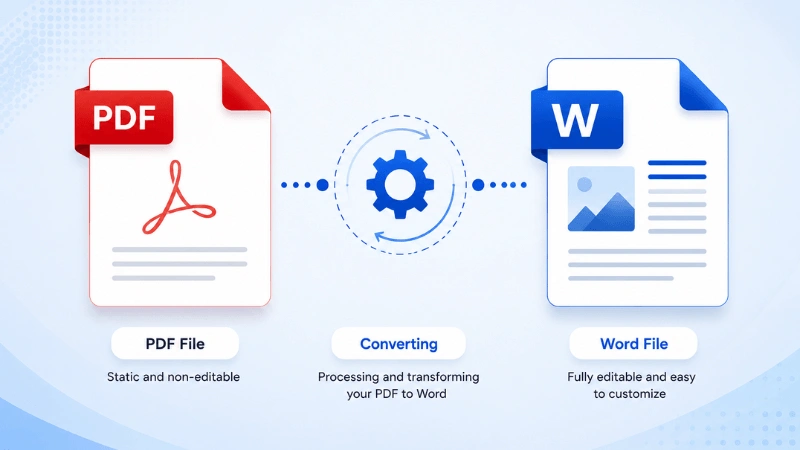
PDF to Word conversion transforms your static PDF into an editable Word file. The converter recreates everything, including the text, image, tables, headings, and overall layout, into a Word file. Once the file is turned into Word format, you can modify it using Microsoft Word or another compatible word processor. You can rewrite content, change fonts, adjust spacing, update images, edit tables, and reorganize layout without the limitations of a PDF editor.
PDF to Word vs Editing the PDF Quick Comparison
| Features | Convert to Word | Edit PDF Directly |
| Best for | Complex edits, reformatting | Basic edits, signatures, annotations |
| Text reflow | Full support | Limited or none |
| Table editing | Fully editable | Often broken or locked |
| Scanned documents | Editable with OCR | Not editable without OCR first |
| Collaboration | Comments, tracked changes | Limited |
| Speed for small fixes | Extra conversion step | Faster |
| Free tool limitations | Full content editing | Limited |
7 Reasons to Convert PDF to Word Instead of Editing PDF
1. Full Editing Freedom
Once you convert PDF to Word document, you get the full editing freedom. You can restructure the page exactly the way you want, rewrite paragraphs, insert a new table, edit, delete a section, and add new content. After making changes, you can convert your document from Word to PDF again
2. Reformatting And Redesigning Become Possible
In a Word document, you can change the font of the text, update the color scheme, or restructure a layout entirely. Word’s style system lets you do that in a few clicks.
3. Fixing Multiple Errors Is Dramatically Faster
Word provides some useful tools, such as Find & Replace, spell check, and grammar tools, which help to correct repeated mistakes, update outdated information, and fix multiple typos in just a few clicks.
4. You Can Repurpose The Content Elsewhere
You can turn an old report into a new proposal, or pull sections of a PDF into a fresh document, which is far easier once the content is in an editable Word file, in a structured format instead of a static page image.
5. Real Collaboration And Tracked Changes
Word files support Microsoft Word’s collaboration features, which allow multiple people to work on the same document. Tools like Track Changes, comments, and version history help teams review edits, share feedback, and manage revisions more efficiently.
6. OCR Turns Scanned Documents Into Usable Text
This is the one people underestimate most. A scanned contract or an old typed document that’s just an image can be converted with OCR into fully editable, searchable Word text, something that’s simply impossible to do inside the PDF itself.
7. Better Tools For Long Documents
Word has built-in features like styles, automatic headings, a table of contents, and page numbering, which make it much easier to organize and edit long documents. While some PDF editors offer similar features, they are often more limited or require extra manual effort.
When Should You Edit a PDF?
Although converting a PDF to Word is often the best choice for extensive and complex edits, it’s not necessary for every situation. You can edit a PDF by using our PDF editor if you only need to make a few basic changes while keeping the document in PDF format,
For minor changes, editing the PDF directly is usually the faster and more convenient option.
- Adding a signature to an otherwise finished document
- Highlighting, commenting, or annotating for someone else to review
- Filling out a form that already has fillable fields
- Making a single, tiny correction, like fixing one date or one word
For anything beyond that, converting to Word will save you far more time than it costs.
Common Problems With Editing a PDF Directly
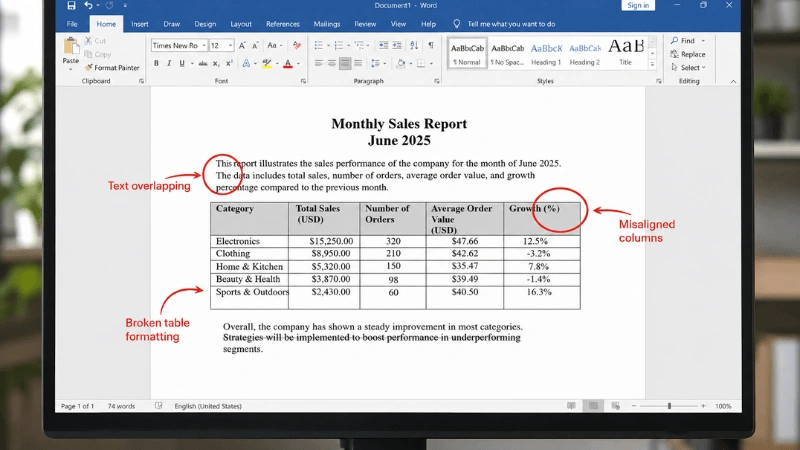
Most people think they can edit their PDF to fix complex problems by using any PDF editor, but end up with these common problems
- Text doesn’t reflow: Add one extra word, and the rest of the paragraph either overlaps the next line or gets pushed off the page entirely.
- Tables fall apart: What looks like a neat grid in a PDF is often just individually positioned lines and text boxes underneath.
- Scanned PDFs aren’t even text: If the file came from a scanner or a photo, there’s nothing to click and edit; it’s just a picture of a document until it’s run through OCR (Optical Character Recognition).
- Fonts and spacing shift unpredictably: PDF editors often substitute fonts or misjudge spacing the moment you start typing, leaving your document looking noticeably different from the original.
- Free tools barely let you do anything: Most free PDF editors only allow annotations, highlights, or basic text boxes, not real content editing.
None of this means PDFs are badly designed. They’re just doing exactly what they were built for, and editing was never part of that job.
Conclusion
Honestly, it comes down to what you’re actually trying to fix in your document. For basic changes, leaving a comment, correcting one word or sign in a PDF, just do it in the PDF editor; no need to overthink it. But when you’re making complex changes, rewriting paragraphs, fixing tables, or reformatting a document that’s gone sideways, converting to Word is going to save you way more time.
PDFs were built to remain consistent everywhere. Word was built to be changed. So once you stop wrestling with the PDF and just convert it, editing becomes easy again.
Frequently Asked Questions
Does converting a PDF to Word ruin the formatting?
Not usually. Our PDF-to-Word converter is built to preserve headings, paragraphs, lists, and the overall document structure during conversion, so most files come out looking close to the original. Very design-heavy or multi-column pages might need a quick manual tweak afterwards, but that’s the exception.
Can I convert a scanned PDF to an editable Word document?
Yes, as long as the converter includes OCR. Without OCR, a scanned PDF is just an image and won’t produce editable text.
Is it safe to convert PDF files online?
Yes, our PDF converter uses an encryption file-sharing system and automatically deletes the file from the server after the conversion is done. We respect our users’ privacy.
Why not just edit the PDF and skip Word entirely?
If you need basic changes, you can use our PDF editor to add text, crop the PDF, and make other simple edits. The moment you need a more complex solution, convert to Word and edit in a word processor.
Will the Word file open correctly in Google Docs?
Yes. A standard Word file opens the same way in Microsoft Word, Google Docs, and LibreOffice Writer.
Can I convert a password-protected PDF to Word?
You’ll need to remove the password first, since most converters can’t process encrypted files directly. Once the PDF is unlocked, conversion works the same as with any other file.