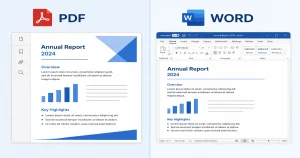

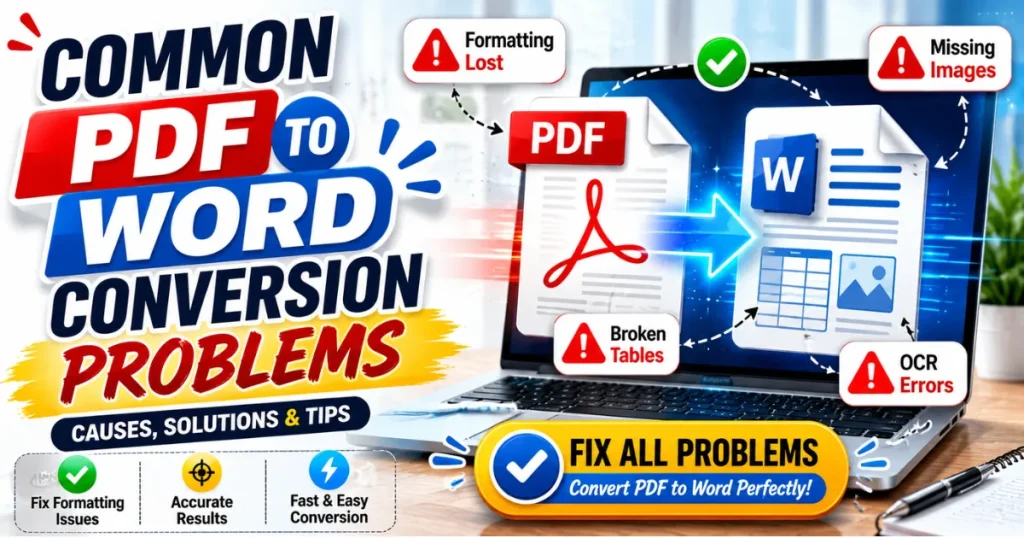
Converting a static PDF into an editable Word file makes it super useful; it allows you to edit text, update format, or collaborate on docs without writing them from scratch. However, people encounter issues such as formatting changes, misaligned text, missing images, shifted tables, and lost hyperlinks when converting from PDF to Word.
In this article, we have explained the most common problems, why they occur, and how you can fix them during conversion to achieve the best results.
Why PDF to Word Conversion Problems Happen
Converting a PDF is not like renaming a file; rather, it’s closer to rebuilding something from a photograph of it. Because the PDF format was created to preserve how a page looks, not editable content. The converter has to interpret the layout and recreate it as something editable.
How perfect the conversion will be depends on how the PDF was made, whether it was real selectable text or how complex the design is, and, honestly, how good the converter is.
PDFs Are Designed for Viewing, Not Editing
A PDF is basically a digital printout of text, images, and spacing, all locked in place. Word is the opposite; everything’s meant to flow and rearrange. Going from “locked” to “editable” is where small shifts sneak in.
Digital PDFs vs. Scanned PDFs
A digital PDF made straight from Word or Google Docs has real, selectable text, so it converts correctly. A scanned PDF is just a photo of a page, with no text data at all, which means it needs OCR (Optical Character Recognition) before it can become editable.
How the Original PDF Affects Conversion Quality
If the original PDF has Multiple columns, dense tables, decorative fonts, low-res scans, watermarks, layered graphics, password locks, and handwriting, all of these make it harder for a converter. Cleaner source file, cleaner result. That part never changes.
10 Common PDF to Word Conversion Problems and Solutions
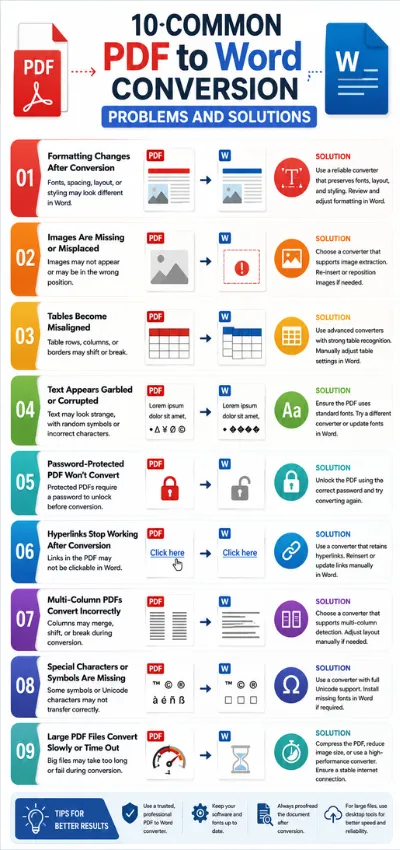
1. Formatting Changes After Conversion
You’ll notice this one immediately: paragraphs shift, wrong spacing, margins don’t line up anymore. It happens because Word has to rebuild a frozen layout using its own rules, and gaps in font availability or spacing settings throw things off, especially with columns or custom page sizes.
Solution
Use our powerful PDF-to-Word or Word-to-PDF converter, install the original fonts if available, and check the page size and margins after conversion.
2. Images Are Missing or Misplaced
Images Are Missing or misplaced, Brochures and resumes feel this the most. If an image disappears, shifts, or overlaps text, it shouldn’t. It comes down to how the image was embedded or anchored in the original file.
Solution
Use a converter that preserves images and layout accurately. You can use our PDF editor to reposition your pictures.
3. Tables Become Misaligned
Tables Become Misaligned. Here’s the thing about tables in a PDF: they’re not really tables at all, structurally. Just lines and positioned text that happen to look like a grid. So the converter is guessing at row and column boundaries, and merged cells make that guess a lot less reliable.
Solution
Use a converter that has OCR and can accurately detect tables. After conversion, review the table structure in Word and adjust row heights, column widths, or merged cells.
4. Text Appears Garbled
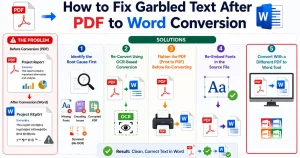
Text Appears Garbled or Contains Strange Characters: Random symbols, question marks, words that don’t mean anything. That’s because the converter couldn’t correctly read the font or character encoding.
Solution
If your PDFs are scanned, then use a converter with good Unicode and OCR support. If the file is damaged, recreate the PDF from the original document.
5. Password-Protected PDF Won’t Convert
Password-Protected PDF Won’t Convert. If the converter isn’t allowed to open or edit the file, it simply can’t do its job.
Solution
First, remove password protection by entering the correct password before converting.
6. Hyperlinks Stop Working
Hyperlinks Stop Working After Conversion. Links that worked fine in the PDF now appear as flat, dead text and no longer work. usually because some converters focus solely on visible content and skip the link data beneath it.
Solution
You have to manually re-link in your Word document, or you can use our PDF editor to re-link when exporting to Word, because most converters that preserve hyperlinks are paid.
7. Multi-Column PDFs Convert into a Single Column
PDFs store the visual appearance rather than the document structure; the converter may misinterpret the reading order and combine multiple columns into a single column,
Solution
Use a converter that supports complex layouts and multi-column documents.
8. Special Characters or Symbols Are Missing
Special characters, such as mathematical formulas, currency symbols, accented letters, or other non-standard characters, may disappear or display incorrectly after conversion.
Solution
Use a converter with full Unicode support and ensure the required fonts are installed. After conversion, review the document carefully and manually restore any missing symbols if necessary.
9. Large Files Convert Slowly or Time Out
Large PDF files can take significantly longer to convert, and in some cases. The conversion process may fail entirely or time out. For example, converting a 300-page report with multiple charts and images may take several minutes, while some online converters may stop processing due to upload size or time limitations.
Solution
Compress the PDF before converting it. This shrinks the file size. Split large files into smaller sections and convert them one by one. Remove unnecessary images or blank pages first. Use a reliable converter that supports large files. Make sure your internet connection is stable throughout.
10. Headers, Footers, and Page Numbers Get Lost or Duplicated
Sometimes after conversion, headers or footers disappear completely, or worse, they get duplicated on every page in the wrong spot. This happens because Word treats headers/footers as a separate layout element, while PDFs just place them as regular text blocks.
Solution
Check the header/footer section in Word after conversion and manually fix spacing or remove duplicates if needed.
How to Avoid PDF to Word Conversion Problems
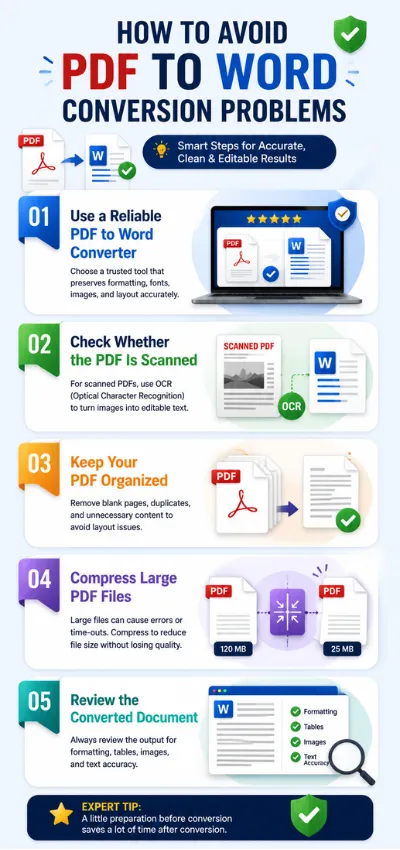
Converting a PDF to Word should be quick and accurate, but formatting issues, missing text, and conversion errors can occur if you use the wrong tool or an unsuitable PDF. Fortunately, following a few best practices can help you achieve clean and editable Word documents every time.
1. Use a Reliable PDF to Word Converter
The quality of your converter plays the biggest role in the final output. Choose a trusted PDF converter that preserves formatting, fonts, images, tables, and page layouts while supporting both standard and scanned PDFs.
2. Check Whether the PDF Is Scanned
If your PDF is image-based rather than text-based, use a converter with Optical Character Recognition (OCR). OCR technology recognizes printed text and converts it into an editable Word document instead of creating an image-only file.
3. Keep Your PDF Organized
Before converting, remove unnecessary blank pages, duplicate content, or oversized images. A clean PDF reduces processing time and minimizes formatting problems during conversion.
4. Compress Large PDF Files
Very large PDF files often convert slowly or fail to convert at all. Compressing the document before conversion improves upload speed and reduces the chances of timeouts while maintaining acceptable quality.
5. Review the Converted Document
Even the best converters may require minor adjustments. After conversion, review headings, tables, fonts, page breaks, and images to ensure everything appears correctly before sharing or editing further.
It is noted that if you’re converting important documents such as contracts, research papers, or business reports, always keep the original PDF as a backup in case manual corrections are needed.
What Makes a Good PDF to Word Converter?
Not all PDF converters deliver the same results. A high-quality PDF to Word converter should accurately preserve your document while making editing simple and efficient.
Here are the key features to look for:
- High Conversion Accuracy: Maintains the original formatting, fonts, tables, images, and page layout.
- OCR Support: Converts scanned PDFs into fully editable Word documents.
- Fast Processing: Handles both small and large files quickly without unnecessary delays.
- Secure File Handling: Protects uploaded documents with encryption and automatically deletes them.
- Multi-Platform Compatibility: Works smoothly on Windows, Mac, Android, iPhone, and web browsers.
- Batch Conversion: Allows multiple PDF files to be converted simultaneously, saving valuable time.
- No Watermarks: Produces clean Word documents without unwanted branding.
- User-Friendly Interface: Offers a simple workflow that requires only a few clicks.
A reliable PDF-to-Word converter helps students, professionals, businesses, and educators save time while avoiding common conversion issues. If you frequently edit PDF documents, choosing a reliable conversion tool with OCR support, high accuracy, and strong security features can significantly improve your productivity and document quality.
Final Thought
Understanding Common PDF to Word Conversion Problems is the first step toward achieving accurate, editable, and professional-quality documents. Issues such as formatting changes, missing images, broken tables, OCR errors, unsupported fonts, or slow conversions are common. Before converting, ensure your PDF is clear, complete, and suitable for editing. For complex files containing tables, graphics, or special formatting, use a solution that preserves document structure and accuracy.
Frequently Asked Questions
Why does my PDF lose formatting after converting to Word?
PDFs and Word documents use different file structures, so formatting changes can happen during conversion. Complex layouts, custom fonts, text boxes, multi-column designs, and embedded graphics are particularly challenging to recreate in Word. As a result, you may notice shifted text, altered spacing, or misplaced images.
Can I convert a scanned PDF into an editable Word document?
Yes, but only if the converter supports Optical Character Recognition (OCR). A scanned PDF is essentially an image, meaning standard conversion tools cannot recognize the text. OCR analyzes the image, detects the characters, and converts them into editable text.
Why are images missing after conversion?
Images may disappear if they are embedded in an unsupported format, stored as separate layers, or become corrupted within the original PDF. Some basic converters also prioritize text extraction over image preservation, which can result in missing graphics.
Does converting PDF to Word reduce quality?
Converting a PDF to Word does not automatically reduce quality. Most text remains sharp because it is recreated as editable content rather than copied as an image. However, image quality, formatting precision, and graphic elements may vary depending on the converter and the complexity of the document.
Why won’t my password-protected PDF convert?
A password-protected PDF cannot be converted until the security restrictions are removed. Passwords prevent unauthorized access, editing, copying, or conversion to protect sensitive information.
How do I improve PDF-to-Word conversion accuracy?
The accuracy of a PDF-to-Word conversion depends on both the quality of the original file and the capabilities of the conversion tool.
To improve accuracy
- Use a converter with OCR support.
- Upload a high-quality PDF with readable text.
- Compress oversized files only when necessary.
- Avoid damaged or incomplete PDFs.
- Review the converted Word document and make small formatting adjustments before finalizing it.
Why are tables broken after conversion?
Tables often break because PDFs do not store table structures the same way Word does. During conversion, the software must interpret cell boundaries, merged columns, spacing, and alignment, which can lead to misplaced rows or uneven formatting.