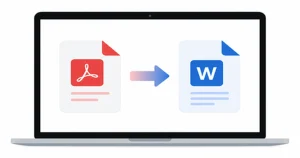

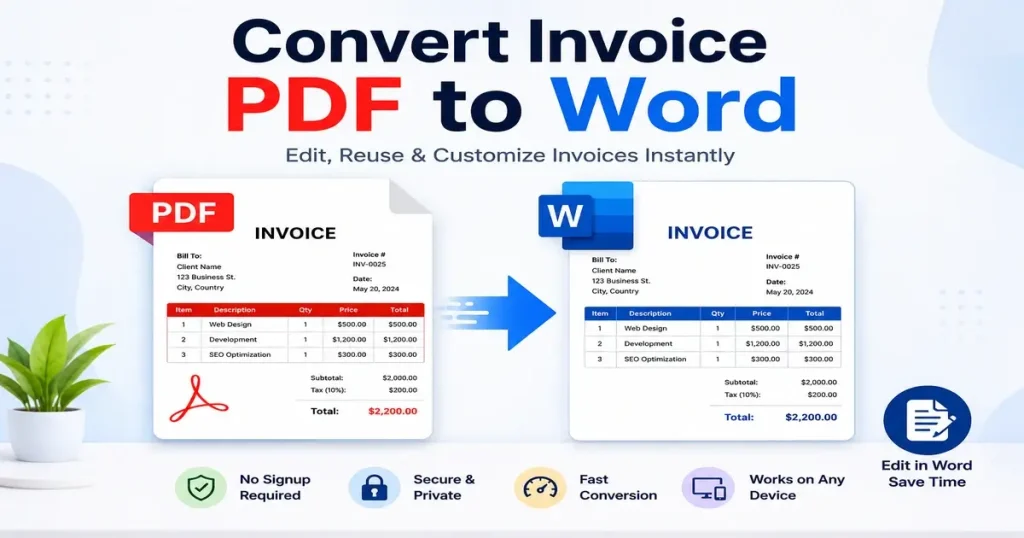
You got an invoice PDF, and now you need to change something on it. Maybe the client’s name is wrong. Maybe you want to reuse an old invoice as a new template. The problem is that the file is locked as a PDF, and editing a PDF directly is never simple. The fix is easy. Convert invoice PDF to Word, make your changes, and you are done. This guide shows you how to do it without messing up the tables, numbers, or layout that make an invoice look professional.
Quick answer: To convert an invoice PDF to Word, upload your file to a PDF to Word converter, convert it, then download the file as a Word document. You can then update client details, totals, or line items and save them back as a PDF when finished.
Why Convert an Invoice PDF to Word
Invoices are not one-time documents. You send them again and again, every week or every month. But with PDFs, even small edits are a hassle.
Here’s when converting a PDF invoice to Word actually helps:
- Fix mistakes fast. Wrong number or name? Fix it in Word.
- Reuse old invoices. Change the numbers, not the whole file.
- Handle recurring invoices easily. Update one file each month.
- Making the text searchable. Word is easier to search and edit than a PDF.
In short, converting to Word saves time whenever you need to make changes.
Step by Step: Convert Invoice PDF to Word
Converting an invoice PDF to an editable Word document takes just three steps.
Step 1: Upload Your Invoice PDF
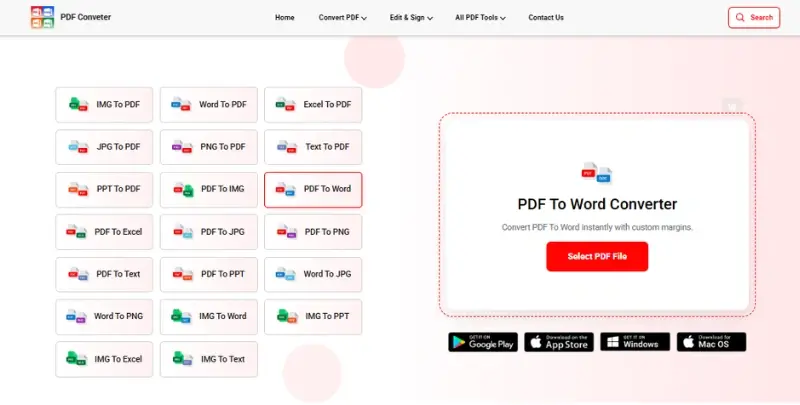
Open the PDF to Word converter and upload your invoice file. Most tools accept drag and drop, or you can browse and select the file from your device.
Step 2: Convert the File
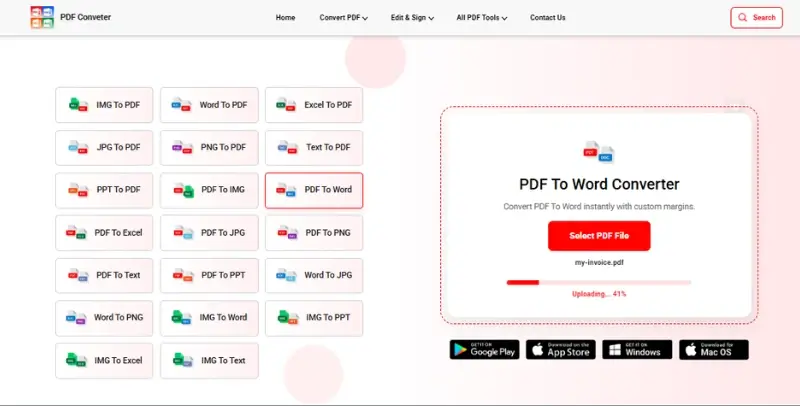
Click convert and let the tool process the file. This is the part that matters most for invoices, since they are packed with tables, columns, and aligned numbers. A good converter keeps your line items, totals, and layout intact instead of turning everything into one messy block of text.
Step 3: Download and Edit in Word
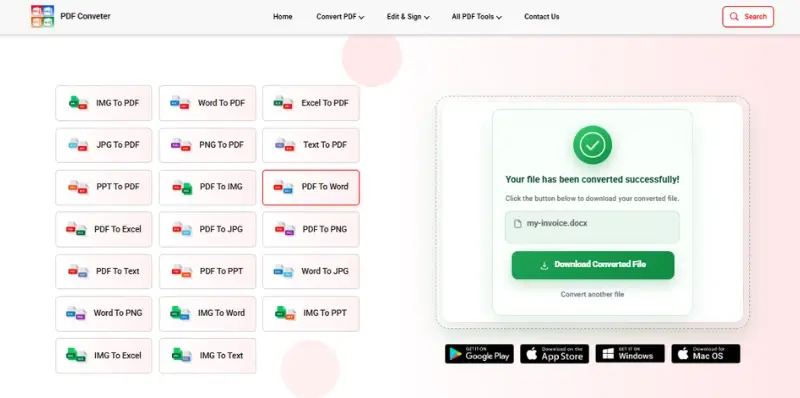
Once the conversion finishes, download the Word file. Open it in Microsoft Word or any word processor and start editing. Change the client name, update the amount, fix a date, or adjust the terms. Save your changes when done.
If you are on a Mac, the process works the same way, but check our guide on converting PDF to Word on Mac if you run into any device-specific steps.
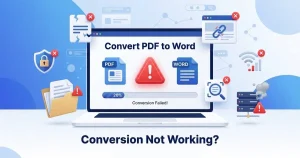
Common Problems When Converting Invoice PDFs
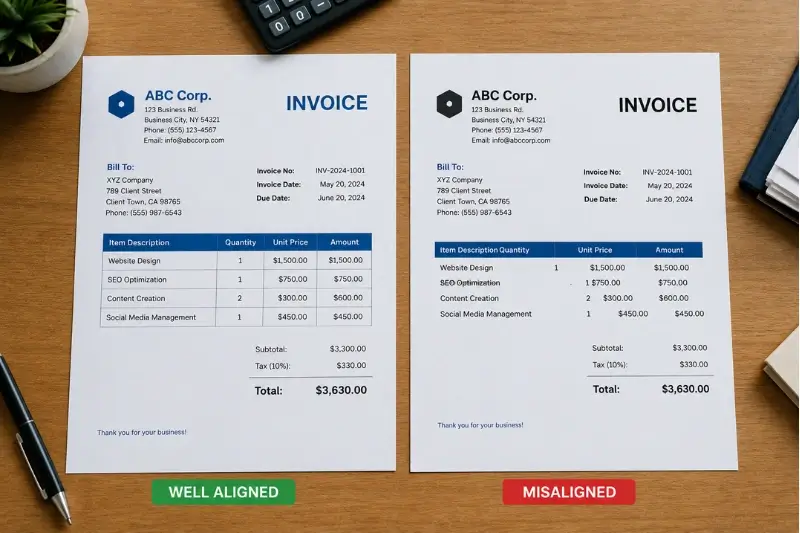
Invoice PDFs are harder to convert than plain text documents because they carry a lot of formatting, tables, logos, and layout. Here are the issues you might run into, and what causes them.
Table or Column Misalignment
Invoices rely on tables for line items and totals. If the converter does not read the table structure well, columns can shift or merge into each other.
Solution
Choose a converter that works well with tables, not just plain text. Once it’s converted, scroll through the line items and make sure each number is in the right column before you start editing.
Logo or Signature Shifting
Company logos and signature images sometimes move out of place after conversion. Check the header and footer area first after converting.
Solution
Click the image, then use Word’s text wrapping option to lock it in place. If it shifted a bit, just drag it back manually. It’s quick and won’t affect the rest of the layout.
Font Mismatch
If your invoice uses a custom or branded font, Word might substitute it with a default font. This does not affect the content, but it can affect how the invoice looks.
Solution
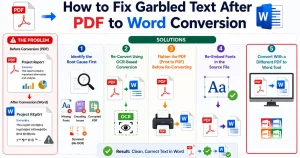
Install the original font on your device if you have it, or select the text in Word and manually change it back to your brand font. This keeps your invoice looking consistent. If the text itself looks broken or unreadable instead of just a wrong font, see our guide on fixing garbled text after conversion.
Scanned Invoices Need Extra Steps
If your invoice is a scanned image rather than a digital PDF, a standard converter will not extract any editable text. You need OCR for that, which we cover next.
Solution
Run the scanned invoice through an OCR tool first. This turns the image into real text, and only then will converting to Word give you an editable file.
Scanned Invoice vs Digital Invoice PDF
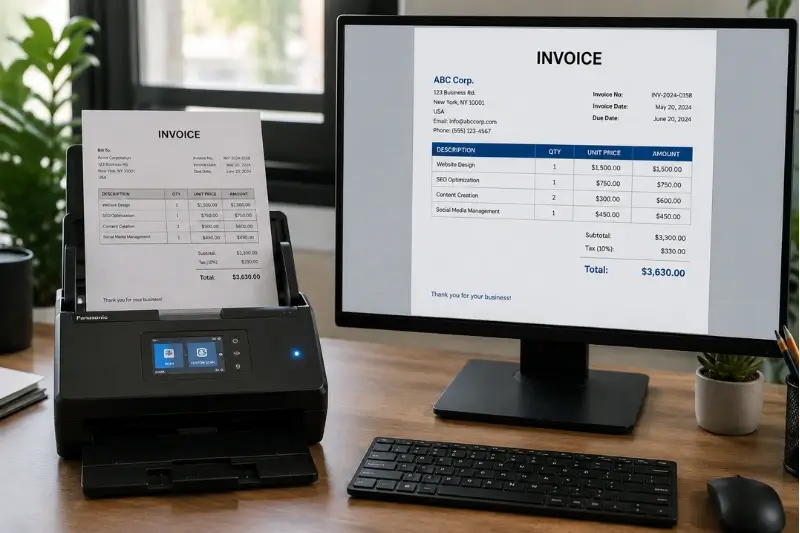
Not all invoice PDFs are the same, and knowing the difference saves you time.
A digital PDF invoice was created directly from software like Word, Excel, or invoicing tools. The text inside is real, selectable text. You can highlight it, copy it, and search it.
A scanned invoice is really just a photo or scan saved as a PDF. It looks like text, but it is actually an image. Try clicking and dragging over the text. If nothing gets selected, it is scanned.
To check quickly, open the PDF and press Ctrl+F on Windows or Command+F on Mac. Search for any word you can see on the invoice. If it finds a match, your file is digital. If not, it is scanned and needs OCR before conversion, which will give you usable text.
For scanned invoices, use a converter with built-in OCR. This reads the image and turns it into real, editable text before converting to Word.
Digital vs Scanned Invoice at a Glance
Not sure whether your invoice is digital or scanned? The table below shows the key differences and the best conversion method for each file type.
| Feature | Digital Invoice PDF | Scanned Invoice PDF |
| Editable Text | Yes | No |
| Text Selectable | Yes | No |
| OCR Required | No | Yes |
| Conversion Quality | Excellent | Depends on OCR |
| Best Conversion Method | Convert directly to Word | OCR first, then convert |
Best Practices After Conversion
A few small checks after converting will save you from sending out a broken invoice. Run through these before you hit send:
- Check your totals. Make sure calculated amounts are still correct.
- Review table alignment. Check nothing shifted or merged.
- Re-lock the invoice. Convert it into PDF before sending.
- Save your template. Keep the Word file for reuse.
Final Thoughts
Converting an invoice PDF to Word is a small task, but it saves real time once you send invoices regularly. Upload the file, convert it, make your edits, and export back to PDF when you are ready to share it. For scanned invoices, just run OCR first, so the text is editable before conversion.
Keep a Word copy of your invoice template so you never have to start from scratch again. After that, every invoice takes just a few minutes to prepare.
Frequently Asked Questions
Can I convert an invoice PDF to Word for free?
Yes, you can convert an invoice PDF to Word for free using an online converter like PDF Conveter. No signup or software installation is required, and the converted file downloads directly to your device.
Will the formatting stay the same after conversion?
Yes, in most cases. Digital invoice PDFs keep their tables, fonts, and layout after conversion. Scanned invoices need OCR first, since the converter must recognize the text before it can preserve any formatting.
Can I convert a scanned invoice to Word?
Yes, but only with a converter that includes OCR. Without OCR, a scanned invoice converts as an image and the text will not be editable in Word.
Is it safe to convert invoices with sensitive data?
Yes, as long as you use a converter that deletes uploaded files after processing. Check the tool’s privacy policy first, and avoid converters that store or share your documents.
Can I convert my edited Word invoice back to PDF?
Yes, you can convert a Word invoice back to PDF using the Save As or Export option in Microsoft Word. This is the standard format for sending finished invoices to clients.
Ready to convert your invoice? Use PDF Conveter’s PDF to Word tool to turn your invoice PDF into an editable Word document in seconds, free and without signup.